Wallet pass alerts
Also send your wishlist alerts to shoppers' Apple Wallet or Google Wallet pass, with Joy Loyalty.
Overview
If you use Joy Loyalty on the Advanced plan or higher, the same alert can also reach shoppers on their phone's lock screen, through their Apple Wallet or Google Wallet loyalty pass.
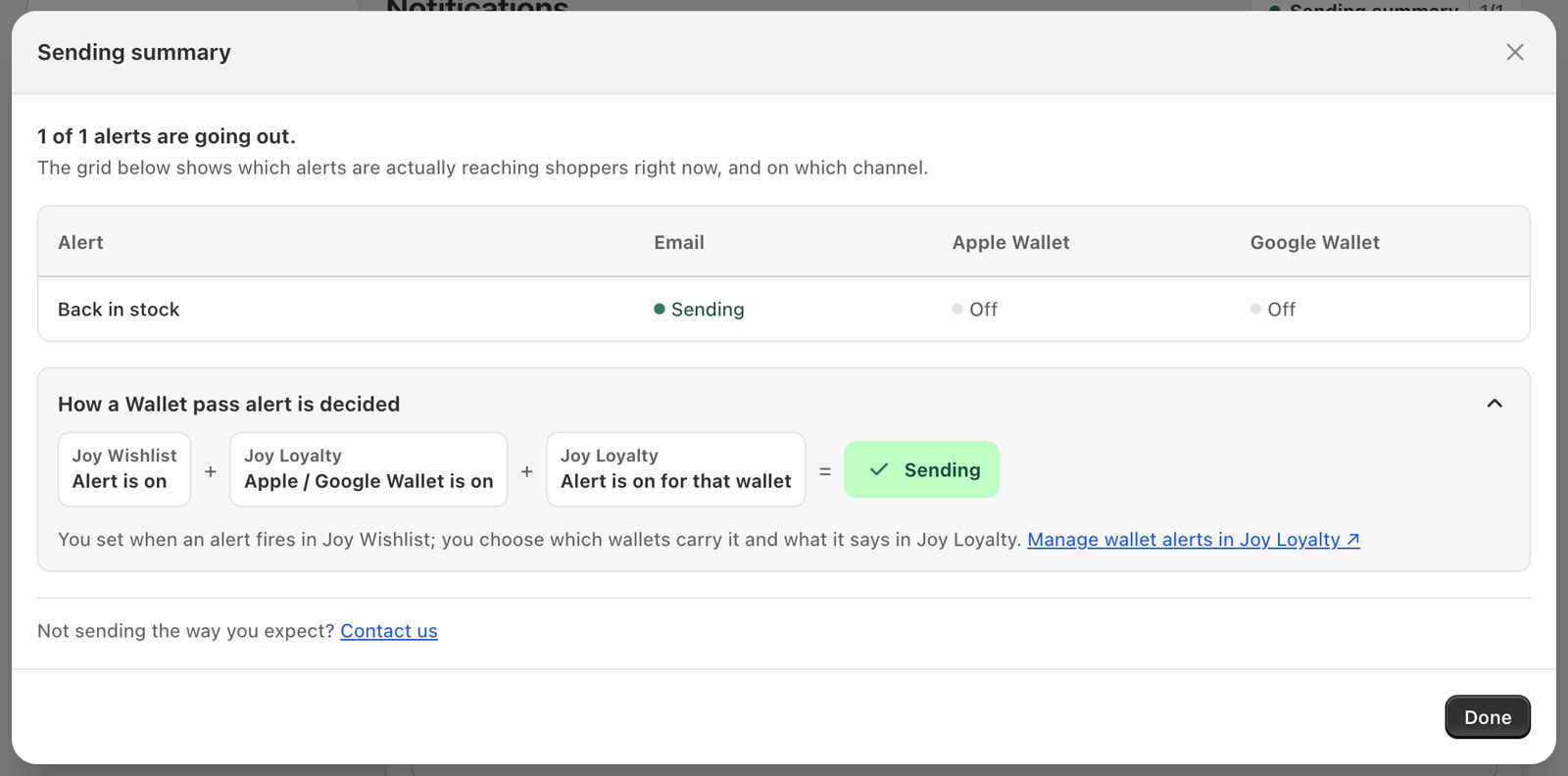
A Wallet pass alert sends only when all three of these are on:
- The alert is on in Joy Wishlist.
- Apple Wallet or Google Wallet is on in Joy Loyalty.
- The alert is on for that wallet in Joy Loyalty.
How to set up
Turn on Wallet pass in Joy Wishlist
Go to Settings > Notifications. Under Choose a sending method, turn on Also send to Wallet pass.
Open your wallet pass in Joy Loyalty
In Joy Loyalty, go to Customers > Loyalty pass and open Google wallet or Apple wallet. Finish the pass settings first. Pass header is required, and Joy Loyalty won't save without it.
Turn on the wishlist alerts
Open the Notifications tab. Turn on Notifications from connected apps, then turn on Back in stock under Wishlist alerts, and click Save.
Turn the wallet on
Turn on the wallet so shoppers can add the pass. See Apple Wallet loyalty pass and Apple Wallet pass notifications. For Google Wallet, see Google Wallet loyalty pass and Google Wallet notifications.
Check Sending summary
Back in Joy Wishlist, open Sending summary. The Apple Wallet or Google Wallet column shows Sending when all three conditions are met.
Good to know
- You set when an alert fires in Joy Wishlist. In Joy Loyalty you choose which wallets carry it and what it says.
- Only signed-in shoppers who added the pass get Wallet pass alerts. Guests still get emails.
- Each customer gets up to 3 Wallet pass notifications per day.
- Wallet pass only sends alerts to Wallet pass instead of email. You need at least one Wallet pass alert turned on in Joy Loyalty first.