Wishlist reminder
Email shoppers about items that have been sitting in their wishlist for a while, before they forget them.
Overview
Shoppers save items they like, then get busy and never come back for them. The Wishlist reminder emails them a few days after they saved an item, with the items still waiting and a button back to your store.
- Reminder email: sent when saved items have been in a wishlist for the number of days you set.
- One reminder per item: each saved item is reminded once, so shoppers aren't nagged about the same thing.
- Frequency limit: you choose how many days must pass between two reminders to the same shopper.
- Supported sending methods:
- Joy Wishlist built-in email: Joy Wishlist designs and sends the email. No other app needed.
- Marketing app: Klaviyo or Omnisend (coming soon) sends the email. Joy Wishlist tells it when.
- Wallet pass (with Joy Loyalty): pushes the reminder to the shopper's Apple Wallet or Google Wallet pass, next to email or on its own.
Wishlist reminder is off by default. This page takes you through the whole setup, from choosing a sending method to testing the reminder.
Before you start
- Make sure the Joy Wishlist app embed is on. On the Joy Wishlist home page, App embed should show Active.
- Read Turning it on for the first time. The first reminders also go to shoppers who saved items before you turned it on.
How to set up
Open Notifications
From your Shopify admin, go to Apps > Joy Wishlist > Settings, then open the Notifications tab.
Choose a sending method
Pick who sends your alert emails. This choice applies to every alert.
- Joy Wishlist built-in email: Joy Wishlist designs and sends the emails. You don't need another app. Best for stores that don't use a marketing app, or want alerts running right away.
- Marketing app: a marketing app you already use, such as Klaviyo or Omnisend (coming soon), sends the emails. Best for stores that already send their emails from a marketing app and want wishlist alerts in the same place.
Choosing Marketing app? You still complete every step on the Notifications page. Joy Wishlist decides when each reminder is due and passes it to your marketing app to send. So set up and turn on Wishlist reminder, and set the send schedule, the same as with built-in email. One thing changes on the page: the last step, Sender details, becomes Connect your marketing app. You then build the email flow in that app.
Wallet pass (optional): in the same section, turn on Also send to Wallet pass to push your alerts to shoppers' lock screens through their Apple Wallet or Google Wallet pass. Both need Joy Loyalty on the Advanced plan or higher. For the setup, see Wallet pass alerts.
Set up and turn on Wishlist reminder
Under Notification types, click Wishlist reminder.
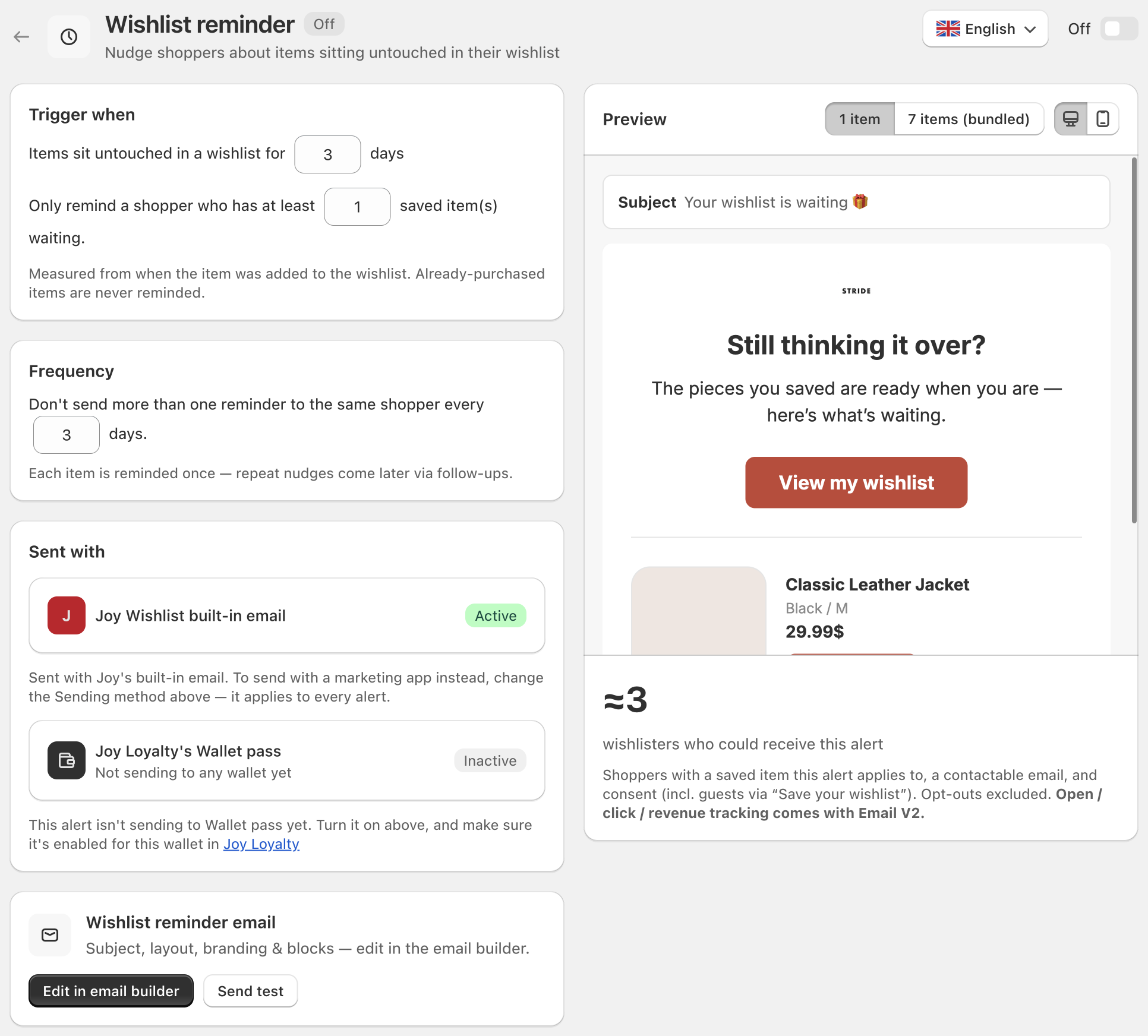
- Trigger when: set how long items wait before a reminder.
- Items sit untouched in a wishlist for a number of days (default 3). Counted from the day the item was saved.
- Only remind a shopper who has at least a number of saved item(s) waiting (default 1). Raise it to remind only shoppers with several items waiting.
- Frequency: Don't send more than one reminder to the same shopper every a number of days (default 3).
- Turn it on: switch the toggle at the top right to Enabled, then click Save in the top bar. No reminders go out until you do.
Wishlist reminder covers every saved item. There's no Apply to setting.
Customize the email
In the Wishlist reminder email card, click Edit in email builder. Change the subject, banner, text and design, check the preview, and send yourself a test. See Email builder.
With Marketing app, you build the email flow in that app instead.
Set the send schedule
Back on the Notifications page, choose when emails go out. This applies to every alert.
- Send at a set time (default): around the time you pick (default 10:00), in each shopper's local time. Best for most stores. A reminder isn't urgent, so a tidy daily time works well.
- Immediately: goes out as soon as reminders are due, after a short grouping window (default 10 minutes) that combines them into one email.
If we can't detect a shopper's time zone, emails follow your shop's time zone.
Set your sender details
Choose who the email comes from.
- Default: sends from
[email protected]under your store name. No setup needed. Best for starting right away, or if you don't have an email address on your own domain. - Custom: sends from your own email address, once you verify it and turn it on. Best for stores with their own email domain. Shoppers see your address in the inbox, which builds trust and improves deliverability.
For the full steps, see Sender details.
With Marketing app, this step is Connect your marketing app instead. Click Connect an app in Integrations and connect your app.
Test it yourself
To check how the email looks, click Send test in the Wishlist reminder email card. It arrives in a minute or two, with a sample product.
To see a real reminder arrive, run one full test. The shortest wait is 1 day, so this test takes 1 to 2 days.
Shorten the wait
On the Wishlist reminder page, set Items sit untouched in a wishlist for to 1 day. Keep the minimum at 1 item, and click Save.
Create a test shopper
In Shopify, go to Customers and add a customer with an email you can check. Set them to receive marketing emails.
Save an item
On your store, sign in as that customer and save an in-stock product to the wishlist.
Wait for the email
Joy Wishlist checks wishlists once a day. The reminder goes out at your next send time after the item has been saved for 1 day.
Check Sending summary
On the Notifications page, open Sending summary. Wishlist reminder shows Sending under Email.
When you're done, set Items sit untouched in a wishlist for back to the number of days you want.
If the email doesn't arrive, see Troubleshooting.
Reference
The steps above cover the full setup. This part goes deeper into how reminders are picked and what shoppers see.
Trigger and frequency
| Setting | Default | What it does |
|---|---|---|
| Items sit untouched in a wishlist for | 3 days | Counted from the day the item was saved. Opening the wishlist doesn't restart the count. |
| Only remind a shopper who has at least | 1 item | Counts only the items that are ready for a reminder. Below the minimum, Joy Wishlist waits and checks again the next day. |
| Don't send more than one reminder to the same shopper every | 3 days | Items that become due in the meantime wait and go out together in the next reminder. |
Which items are included
A reminder includes items saved at least the number of days you set that haven't been reminded yet.
It leaves out:
- Items the shopper bought.
- Items already included in an earlier reminder.
- Items removed from the wishlist.
- Products that are deleted, in draft or archived.
What shoppers see
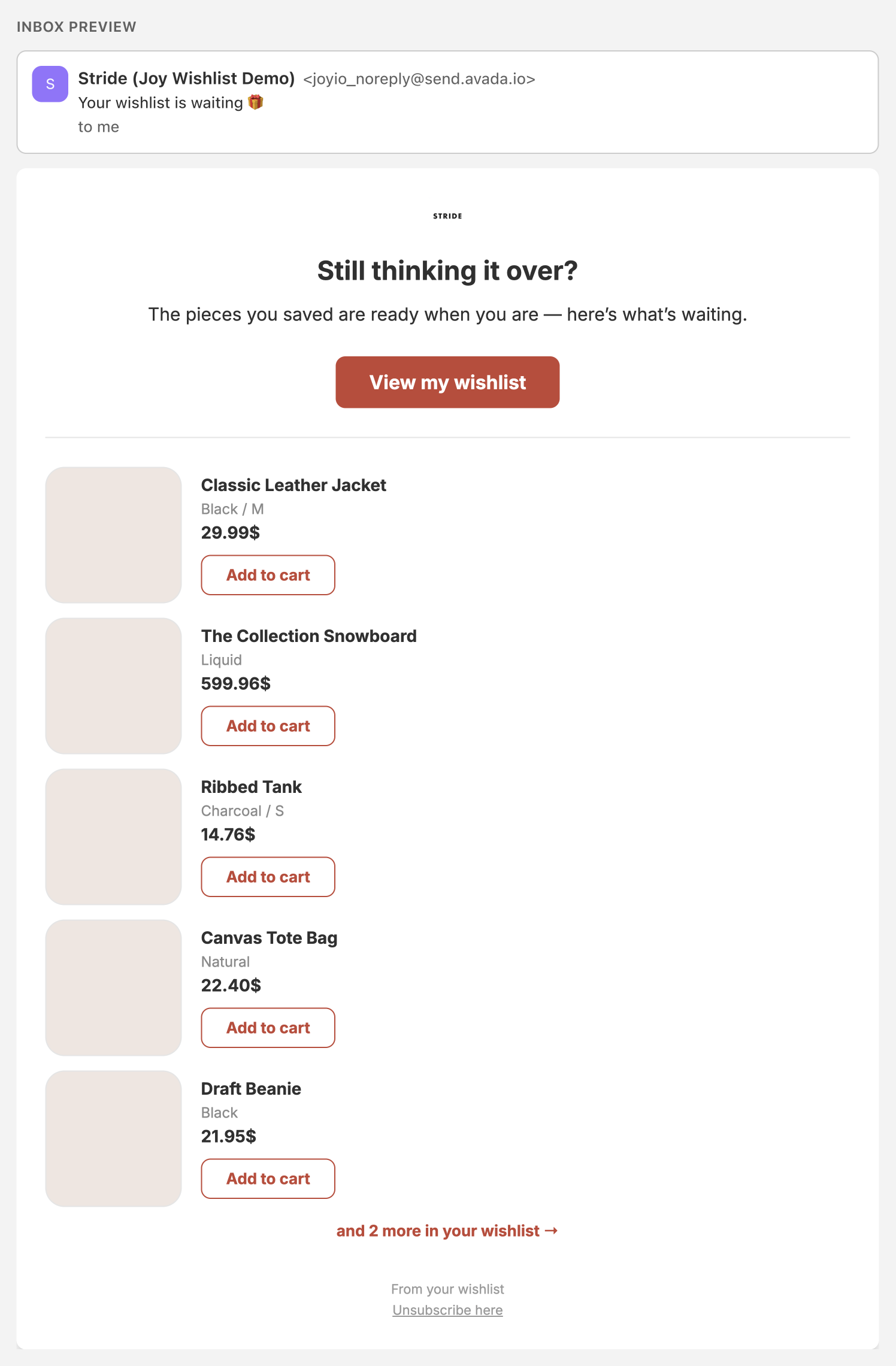
- The email: your heading and message, then up to 5 saved items, newest saved first. Each item shows its image, name, option and current price, with an Add to cart button. With more than 5 items, a link shows how many more are waiting in the wishlist.
- The main button (default View my wishlist): opens the wishlist page. When the email has only one item, it opens that product's page.
- Unsubscribe: every email has an Unsubscribe here link.
Turning it on for the first time
There's no cut-off date for older wishlists. On the first daily check after you turn Wishlist reminder on, every shopper with items saved at least the number of days you set gets one reminder for those items. After that, each item is reminded only once.
If your store has many old wishlists, this first send can be large. Check your email text before you turn it on.
Good to know
- Off by default: no reminders go out until you turn Wishlist reminder on and save.
- One email, not many: all items due for a shopper at the same time go into one email.
- Sent last: if a shopper is due for other alerts at the same time, each goes out as its own email, 5 minutes apart, and the reminder comes last.
- Turning it off: reminders waiting to go out are dropped. Those items can still be reminded after you turn it back on.
- Who gets it: signed-in shoppers and guests who shared their email, as long as they agreed to receive your emails.
FAQ
Q: Will the same item be reminded twice?
A: No. Each item is reminded once. If the shopper removes it and saves it again, it counts as a new save and can be reminded again.
Q: Why didn't a shopper get a reminder?
A: Check these in order:
- Wishlist reminder is Enabled and saved.
- The shopper has an email and agreed to receive your emails.
- The item was saved at least the number of days you set, and hasn't been reminded before.
- The shopper has at least the minimum number of items waiting.
- The shopper didn't get another reminder within your frequency limit.
- The shopper hasn't bought the item, and the product isn't deleted, in draft or archived.
Q: Can I send reminders for some products only?
A: No. Wishlist reminder covers every saved item.
Q: Can I set the wait in hours?
A: No. The wait is set in days, with 1 day as the shortest.