Redeem in Cart
Let customers spend points on a reward right in the cart drawer or on the cart page.
This feature is available in Essential, Advanced, and Ultimate
What is this feature?
Picture your customer with $150 of skincare products in their cart and 800 loyalty points. Instead of forcing them to navigate away and risk losing their shopping momentum, the Cart Drawer Redeem Block lets them redeem points instantly within their cart.
They see "Redeem your points: 800 points," select "$25 off for every 250 points," and watch their total drop to $100 in one click: no disruption, no confusion – just seamless value recognition embedded directly in their purchase flow.
Why you should use this feature
Rising acquisition costs demand maximizing existing customer relationships over chasing new ones. Every redemption friction point represents lost revenue and weakened loyalty.
The Cart Drawer Redeem Block creates immediate gratification that builds psychological loyalty. When customers redeem points without disrupting their flow, they develop anticipation for future redemptions, shifting from price-shopping to loyalty-building.
The new Redeem in Cart
Redeem in Cart has been rebuilt with its own full-screen editor. It works in the cart drawer and on the cart page, and every reward applies without reloading the page.
New stores get the new Redeem in Cart by default. If your store still uses the classic block, its settings page shows a Try the new Redeem in Cart banner — contact support from there to switch. Your classic settings are carried over.
What customers see
- The best reward first — the card opens on the reward that saves the customer the most on the current cart.
- A slider for dynamic rewards — customers choose how many points to spend. You can also show a points input so they can type the amount.
- Free shipping rewards — redeemable from the cart, alongside discount rewards.
- Points earned on this order — an optional row shows how many points the order will earn.
Turn on the app embed
In your Shopify Theme Editor, open App embeds, turn on Joy: Redeem in Cart, and save. Until it is on, the editor shows a Redeem in Cart is disabled banner with a shortcut to the Theme Editor.
Open the editor
From your Joy dashboard, go to Embedded content and open Redeem in Cart. The editor shows a live preview of a cart drawer. Switch the preview between Member, Guest, Not redeemed and Redeemed to check each state, or open your live cart.
Settings
- Visibility — hide the block for guests, or for customers without enough points; choose the detail or minimal layout; show points earned on this order.
- Behavior — let customers remove a redeemed coupon themselves, remove discount codes that fail to apply, show the points input for dynamic rewards, and replace an applied reward when a new one that cannot be combined with it saves more.
- Position — Above cart summary (recommended), or a custom position: paste the snippet
<div data-joy-redeem-anchor></div>into your theme template, or enter a CSS selector and the block renders before the first matching element.
Design
Start from one of eight style presets — Minimal, Editorial, Luxury, Bold, Brutalism, Playful, Tech or Botanic — then adjust colors, border and shadow, background image and pattern, fonts, and the apply button. Replace the gift icon with your own image, generate one with AI, or hide it.
On-brand (Beta)
Enter your storefront URL and Joy reads your store's colors, button style, corner radius and font, and can rewrite the card's copy in your store's voice. You review the detected design before you apply it. Use Discard in the top bar to go back to your last save.
Content
Edit every label on the card and its translations for each language your store supports.
Setting up the classic block
The steps below apply to stores still on the classic Redeem in Cart block.
Enabling the embedded content block
To add the Cart Drawer Redeem Block to your store, you'll need to configure it through Joy's embedded content settings and then implement it in your theme.
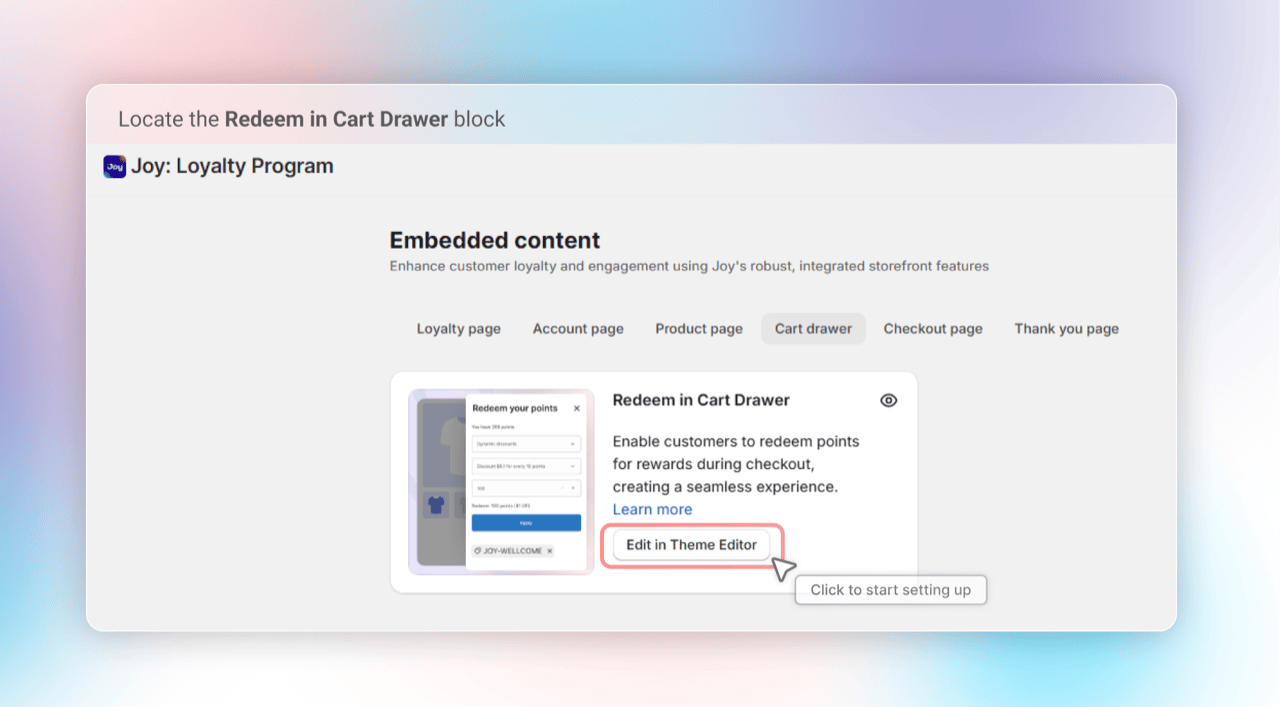
- From your Joy Loyalty dashboard, navigate to Embedded content
- Select the Product page tab
- Locate Redeem in Cart Drawer in the available blocks list
- Click Edit in Theme Editor to access the configuration options
Enable the App embed in the Theme editor
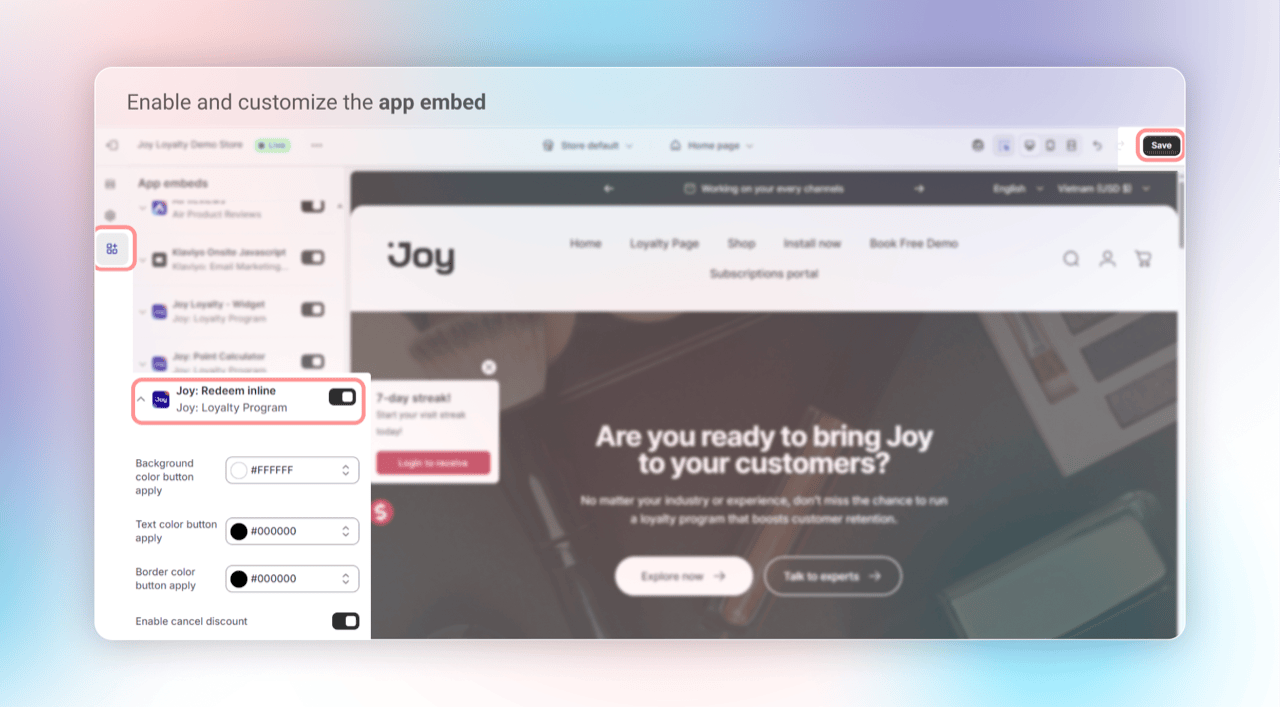
After opening the Theme editor, you can find and turn on the new Joy's app embed named "Joy: Redeem in line"
- Switch to the "App embeds" tab
- Turn on Joy's new app embed "Joy: Redeem in line"
- Click save
Configuring display options
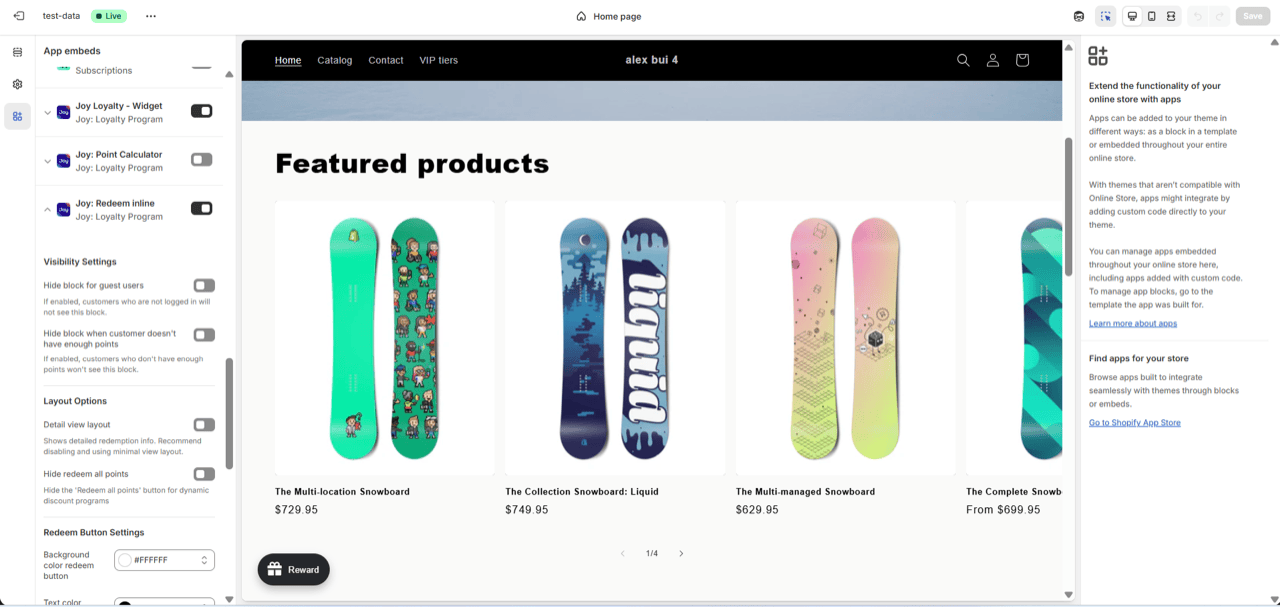
The Cart Drawer Redeem Block includes several customization options to match your store's branding through the embedded content configuration panel.
Button styling:
- Background color button apply - Set the background color for the apply button
- Text color button apply - Configure the text color for the apply button
- Border color button apply - Customize the border color for the apply button
Functional settings:
- Enable cancel discount - Toggle to allow customers to remove applied discounts and restore their points
- Reload page after applying coupon - Enable page reload after discount application for theme compatibility, or disable for smoother AJAX-based updates
- Hide block for guest users or Customers doesn't have enough points
- Minimal view layout/Detail view layout
Implementing the code snippet
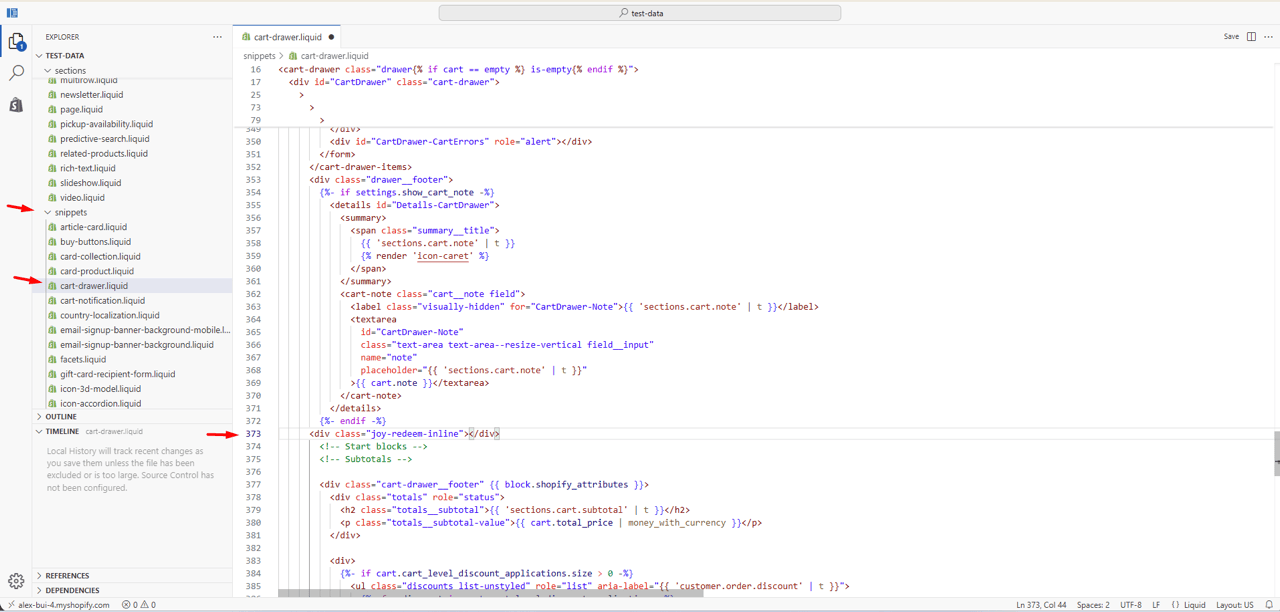
After enabling the block in your Joy dashboard, you'll need to add the redemption interface to your cart drawer template.
- Access your Shopify theme editor
- Navigate to your cart drawer template file: typically
cart-drawer.liquidor similar - Insert the following code snippet where you want the redemption block to appear:
<div class="joy-redeem-inline"></div>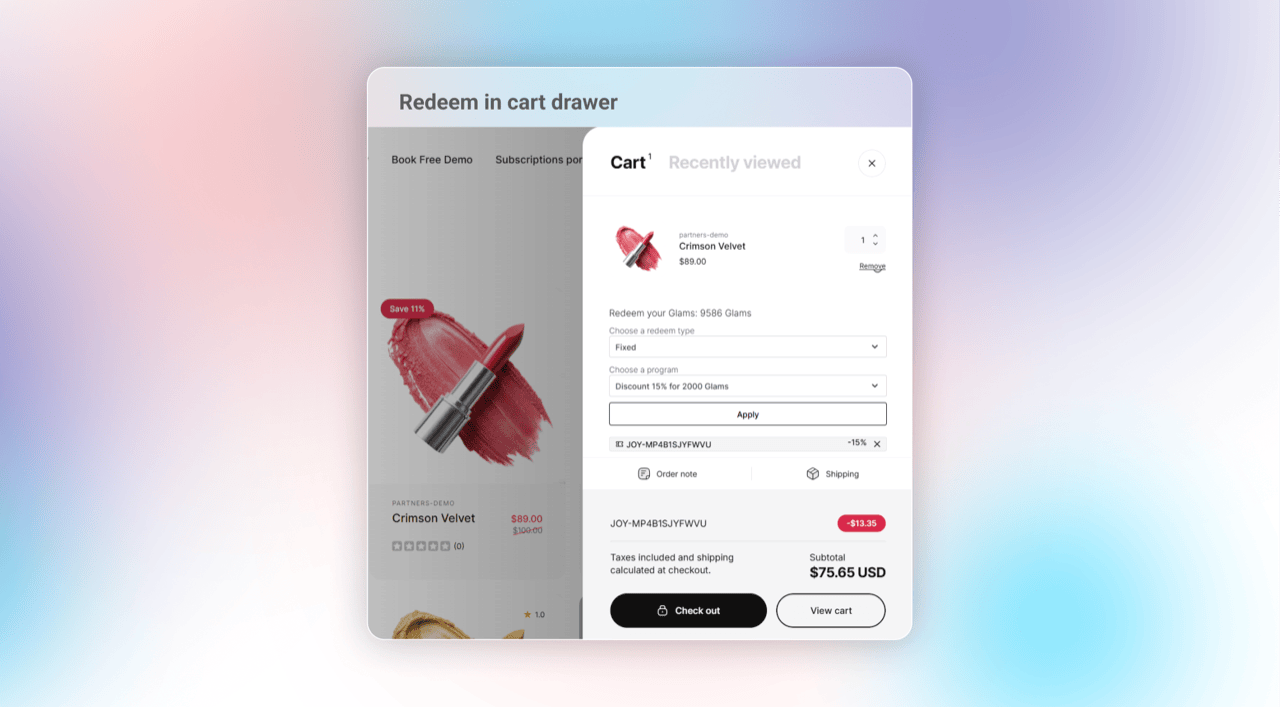
Save changes and watch results
The redemption interface will automatically appear in your cart drawer once the code is implemented and customers have points available for redemption.
Frequently Asked Questions
Can customers redeem multiple reward types in a single transaction?
The Cart Drawer Redeem Block supports one active redemption per cart session. Customers can change their selection before completing checkout, but multiple simultaneous redemptions are not supported to prevent confusion and maintain cart clarity.
What happens if a customer removes items from their cart after redeeming points?
The system automatically recalculates applicable discounts when cart contents change. If the cart total falls below the minimum requirement for the applied discount, the system will notify the customer and may remove the discount, restoring their redeemed points.
How does the redemption block handle cart drawer updates?
The new Redeem in Cart applies rewards without reloading the page. The classic block includes options for both page reload and AJAX-based updates. The AJAX option provides a smoother experience by updating cart totals without refreshing the page, while the reload option ensures compatibility with all theme types.
Can merchants customize error messages for their brand voice?
Yes, all error messages can be customized through the embedded content settings. Merchants can modify text to match their brand voice while maintaining clarity about redemption requirements and limitations.
What happens to redeemed points if a customer abandons their cart?
Points are only permanently deducted when a customer completes their purchase. If they abandon their cart or navigate away without checking out, their points remain available for future redemptions. However, any applied discount codes may remain in their cart session until manually removed.
How does the feature handle different point-to-currency conversion rates?
The system automatically calculates discount values based on your configured reward program settings. Whether you use fixed rates (like 100 points = $10) or variable rates, the interface displays accurate discount amounts and point requirements for each option.
Can customers see their redemption history through the cart drawer block?
The Cart Drawer Redeem Block focuses on current redemption actions rather than historical data. Customers should visit their loyalty page or account dashboard to view their complete redemption history and point-earning activities.