Use Joy in Shopify POS workflow
Learn how to use Joy within your POS system to offer seamless in-store loyalty rewards and enhance customer experience.
This feature is available for Advanced, and Ultimate plans.
Introduction
Integrating our Joy loyalty program into your POS system allows cashiers to easily manage both the earning and redeeming of points right at the checkout. This not only makes transactions smoother but also enhances the overall shopping experience by leveraging membership benefits directly in-store. This guide will demonstrate the essential steps for cashiers to effectively operate the Joy system at your POS.
Implement Joy to cart
First, make sure you have installed Joy Loyalty on your POS device. If you haven't installed it yet, please refer to the instructions here.
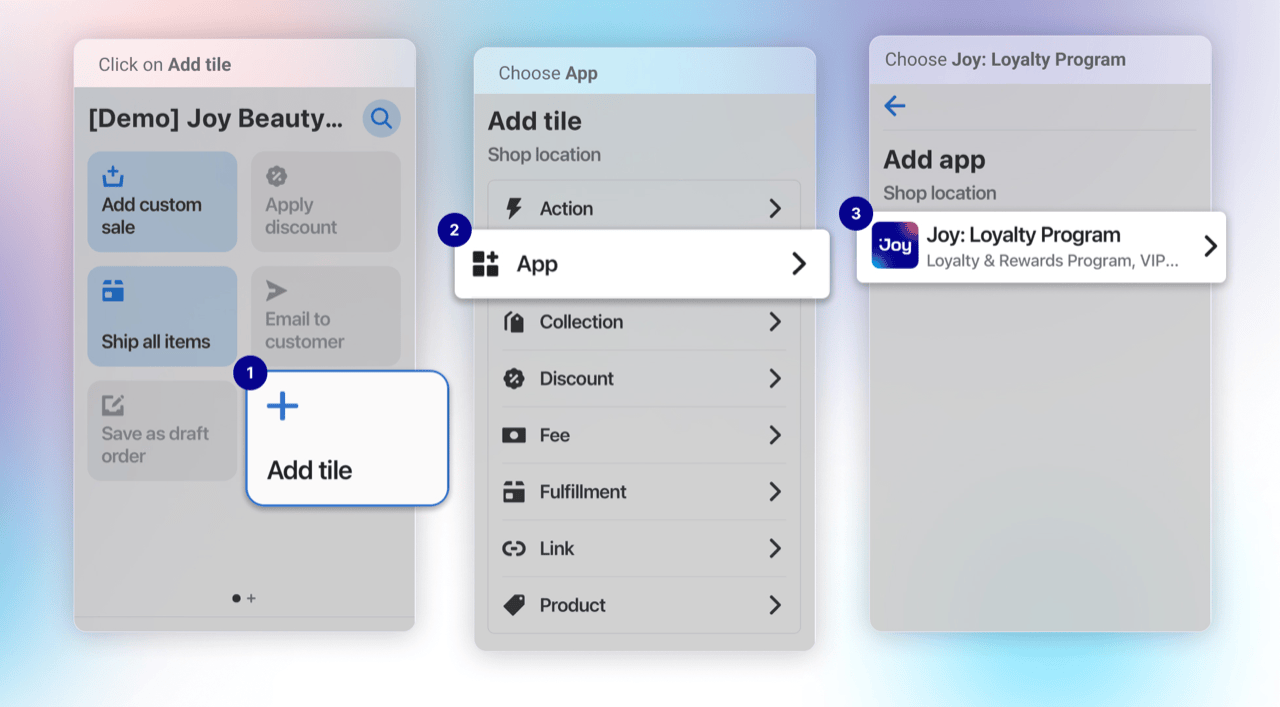
In order to use the Joy extension, the cart cannot be empty. The cart should have the customer and products added already. Also, the customer needs to be a member already to have a balance available for redeeming for coupons.
If it is for earning points, then you just need to process the order normally, and the customer will receive the points for their orders.
Joy Loyalty at POS workflow
To interact with the POS UI on the grid, make sure the shopping cart is not empty and includes both customer and product information.
First, the cashier should ask the customer for their email or phone number to check if they already exist in the Shopify database. If found, the customer can be directly assigned to the cart. If they’re new, create a new customer profile with their personal information—this helps them enjoy a smooth loyalty experience across both online and offline channels.
If you create a customer on POS without identifying them beforehand, it would create duplicate customers on Shopify, which later on makes the loyalty program harder to work for them.
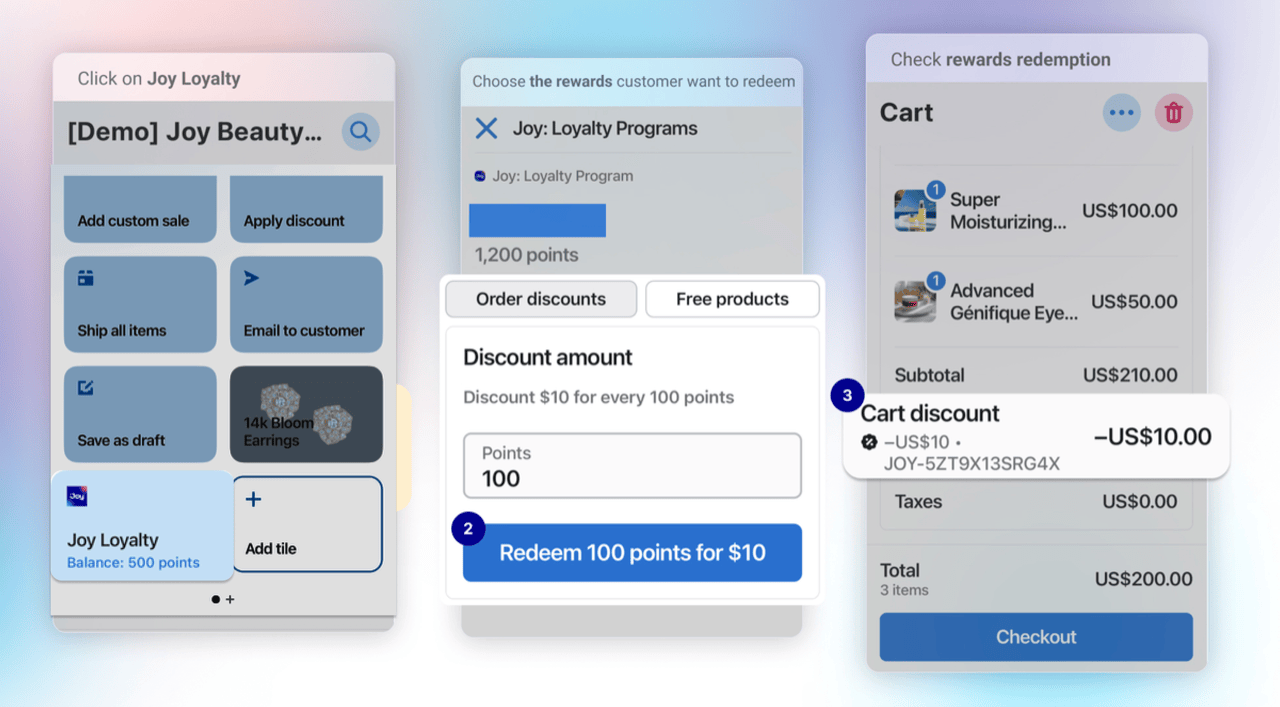
For earning points, simply process the order as usual; registered customers will automatically gain points for their purchases, just as they do on the online store. The only difference in the process is that the POS purchases are often paid and fulfilled on the fly.
See points earned at a glance
The Joy tile on your POS Smart Grid shows a live summary of the customer's loyalty status as you build the cart:
| Cart state | Subtitle shows |
|---|---|
| No customer or product | Add customer and product to the cart |
| Customer added, no product | Balance: X pts / Add product to the cart |
| Customer + product | Balance: X pts / Earn ~Y pts |
| Customer + product, rewards available | Balance: X pts / Earn ~Y pts · N redeemable |
Earn ~Y pts estimates the points the customer will earn for the current cart — so cashiers can tell shoppers exactly what they'll gain ("This order earns you 45 points"). The ~ marks it as an estimate based on the cart subtotal (before tax and shipping); it updates as the cart changes.
The earn preview only appears when at least one Place Order earning program is enabled for the POS channel. It reflects the customer's VIP tier multiplier and POS exclusions, and excludes Birthday, Sign-up, and Social programs. Customers paying with a gift card or store credit may earn slightly fewer points than previewed.
See loyalty points after checkout
After a POS sale, Joy can show the customer's loyalty summary right on the screen — so cashiers can say "you just earned 45 points" and shoppers see their rewards without asking. Two POS surfaces show a Joy Loyalty block.
Post-purchase screen (right after payment) — tap View loyalty points to reveal the summary: points earned (+45), points redeemed (-200, if the order used a reward), any pending points, and the customer's new balance.
On the post-purchase screen the summary sits behind a View loyalty points tap — a Shopify POS behaviour on iOS. If points are still calculating, tap Retry after about 5 seconds.
Order details screen (any past order) — open an order and the block shows that order's points earned and points redeemed automatically, no tap needed. It doesn't show a balance, since the customer's current balance may differ from when the order was placed.
The block only appears for orders that earned or redeemed points.
Turn on the loyalty blocks in POS
These blocks stay off until you activate them in Shopify POS:
- In your Shopify admin, go to Point of Sale → Settings.
- Under Customization, click the screen you want (for example, the post-purchase screen) to open the POS editor.
- Click the Apps icon, then activate the Joy Loyalty block.
- Save, and choose the locations where it should appear.
To hide a block later, deactivate it in the same place.
Wrap up
Integrating Joy Loyalty with your POS simplifies loyalty rewards at checkout, allowing customers to easily earn and redeem points. Ensure the cart includes customer and product details for redemption, while earning points happens automatically with standard order processing. These instructions apply to Shopify POS; for other systems, please contact us for support. With Joy, you can streamline checkout and strengthen customer loyalty effortlessly.