Manually select who can join loyalty program
Turn off automatic enrollment and add members yourself — by hand, Shopify Flow, API, tag, or import.
This mode is available on the Advanced plan and above.
This page covers setting up Manually assigned mode (including a Shopify Flow example). For how members and guests behave and the full enrollment picture, see Member enrollment.
Overview
Allow only selected customers to join your loyalty program.
When enabled, the system will ignore the default "auto join on login" logic — meaning customers must be manually added or approved before they can become members.
Typical use case:
The merchant wants customers to first accept a terms of service form.
Once accepted, a Shopify Flow triggers the action Join Loyalty Program, and the customer is added to the program.
How to set up
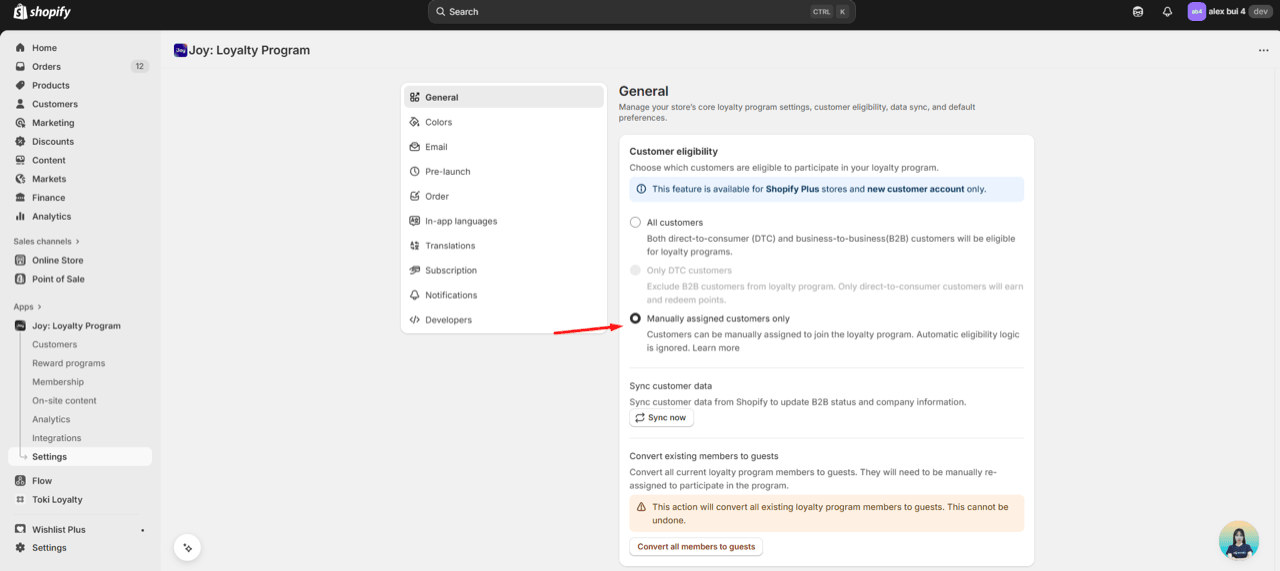
⚙️ Location: Settings → General → Membership enrollment → Manually assigned
🧩 Select the Manually assigned mode and save. Automatic enrollment is disabled once this mode is active.
When this option is enabled:
- The app ignores the default logic that treats every existing account as a loyalty member (including legacy ones).
- Customers will not earn points or access loyalty features unless they are manually added.
- POS and guest orders (email/phone only) will not auto-sync as members either.
Ways to make a customer join the program
Customers can be added through multiple methods:
- Join button in Customer Detail (Joy Admin)
- Shopify Flow action → Action name: Join loyalty program
- API integration
- Add tag method → add tag
Joy: Join Loyaltyto customer in Shopify - Customer import → update customer type to Member in CSV import
Customer experience
Before they're added, customers are treated as guests — no earning, no redeeming, and loyalty content stays hidden (the Loyalty page opens but shows no data). Once you add them, they immediately get full access. See Member enrollment for the details.
Example: Joy Loyalty x Powerful form builder
You can combine Joy Loyalty with Powerful form builder to collect customer consent before joining the loyalty program.
📝 Note:
When setting up this Flow, make sure to configure the proper form conditions as you wish e.g. Required login, auto create Customers, mapping fields such as Email, enable Flow trigger and place the consent form in the right section of your store to ensure correct member assignment.
About the Flow, you can download this file:
And import to Shopify flow:
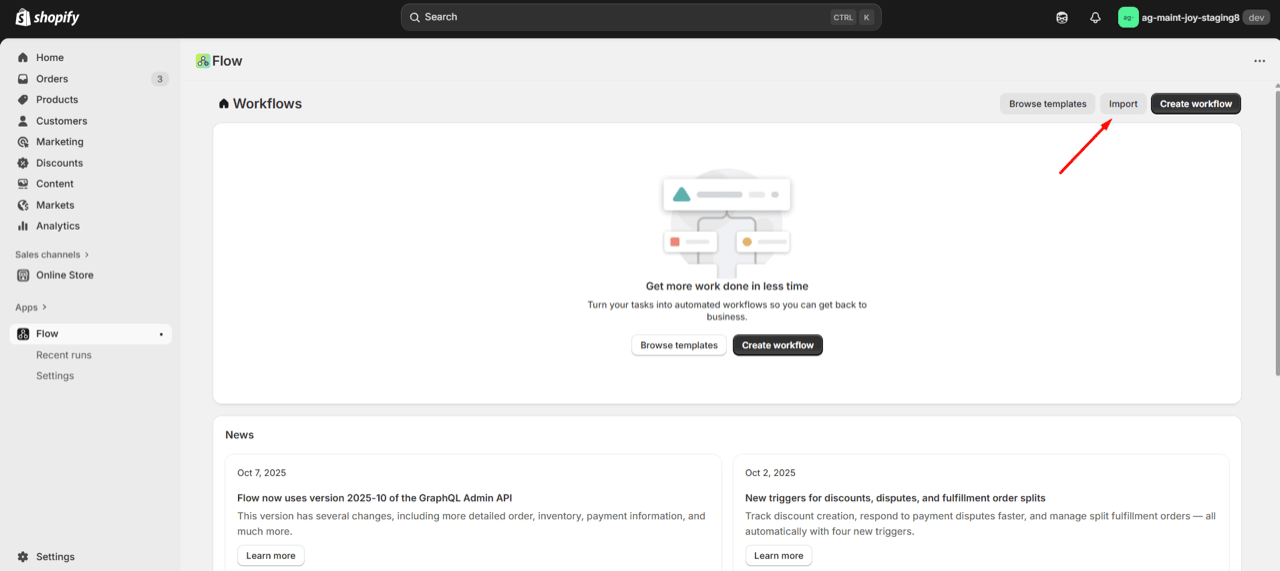
FAQ
1. Can I still use Shopify Flow to automate member assignment?
→ Yes, use the Joy action: Join Loyalty Program to add approved customers automatically.
2. Can I manually add someone back?
→ Yes. Go to Customer Detail → Actions → Join program or use Import → Update type.
For "what happens to existing members when I switch mode", POS behavior, and earning/visibility, see Member enrollment.