Wishlist settings
Control who can use your wishlist and how — guest access, the email capture prompt, and shareable wishlist links.
Overview
The Settings page controls how shoppers interact with your wishlist — the headline option being guest wishlist, which lets people save products without logging in.
With guest wishlist turned on:
- Shoppers save without an account — items are stored on their device and survive page refreshes.
- Nothing is lost on login — when a guest signs in or signs up, their saved items automatically merge into their account wishlist (duplicates removed).
- Full parity — guests can view, remove, share, and move items to cart, just like logged-in customers.
- Grow your marketing list — an optional email capture prompt turns anonymous savers into contacts, with cross-device recovery via an emailed link.
You configure all of these on the Settings page.
How to set up
Open your wishlist settings
From your Shopify admin, go to Apps > Joy Wishlist, then open the Settings page.
Allow guests to add to wishlist
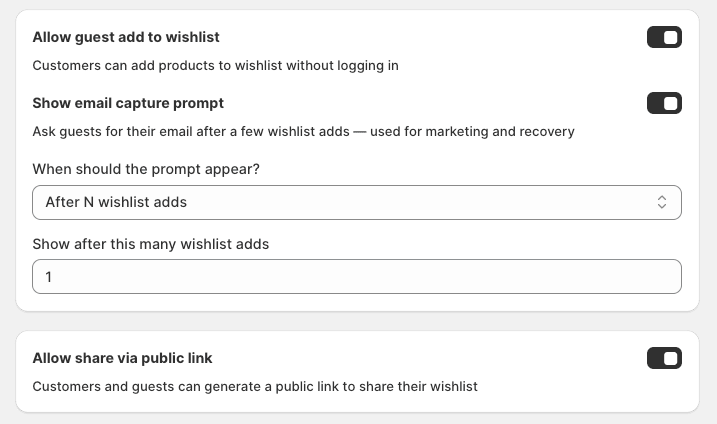
Turn on Allow guest add to wishlist. This is the master switch for guest features.
If you turn this off, the email capture prompt below is turned off automatically.
Show the email capture prompt (optional)
Turn on Show email capture prompt to ask guests for their email after they've saved a few items (a "Save your wishlist" popup). Then choose when the prompt appears:
- After N wishlist adds — set how many saves trigger it.
- After N seconds on page — set the delay in seconds.
- When the user is about to leave (exit-intent) — on mobile (no exit-intent), pick a fallback: after 60s, after scrolling 80%, or skip on mobile.
Turning this on also enables magic-link wishlist recovery — guests who give their email get a link to restore their wishlist on another device. Turning it off disables recovery too.
Allow shareable wishlist links (optional)
Turn on Allow share via public link so customers and guests can generate a public link to their wishlist.
Turning this off immediately breaks any share links your customers already created — those links show an "expired" message, and new links can't be generated.
Save your changes
After adjusting any toggle, click Save in the top bar. Use Discard to undo unsaved changes.