Migration from Stamped to Joy Loyalty
Migrate your loyalty program from Stamped to Joy Loyalty
Which Customer Data Can Joy Migrate?
- Customer Name: Full name of the customer
- VIP Tier Name: The customer’s rank tier in your loyalty program
- Birth Date: The customer’s birthday
- Points Balance: The current points balance the customer holds
- Email: The customer’s email address
What do you need to prepare for the migration?
| File format | |
|---|---|
 | You need to prepare a CSV file containing the list of your store's loyal customers |
Note: If the customer list exported from the loyalty program managed by Stamped is missing the VIP tier field, you can contact Stamped's team for support in exporting the customer file with all necessary fields
How to Migrate
Step 1: Open the Joy Loyalty app → go to Customers → More actions → Migration.
Migration is turned on by our support team. If you don't see Migration under More actions, contact us via live chat and we'll turn it on for your store.
Select Migrate my loyalty program from: Stamped
Upload your loyalty customer data file.
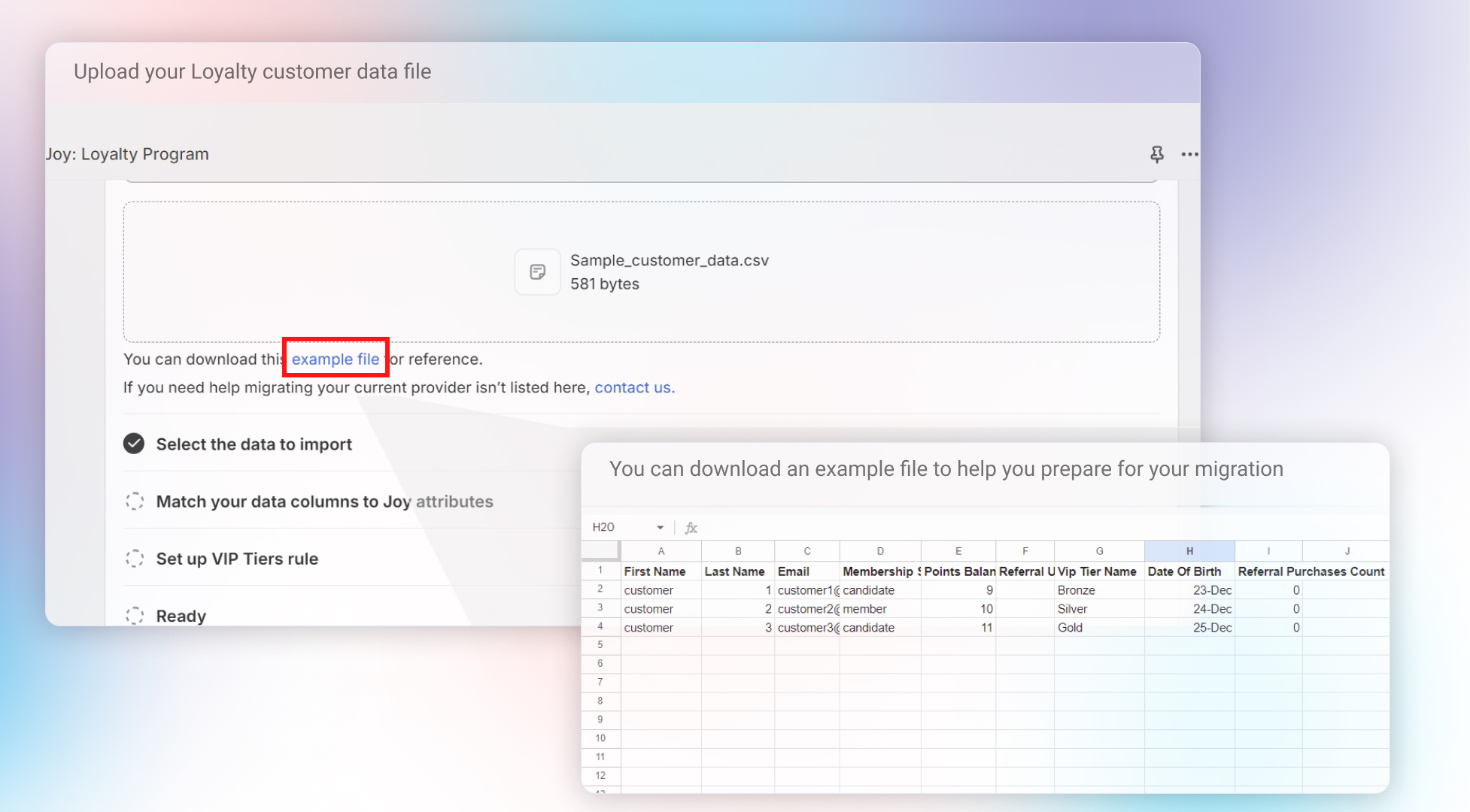
Once uploaded, let's select the data to import
Match your data columns to Joy attributes
Set up VIP Tier rules
Select migration method and start Migration
Wait for the migration process to complete
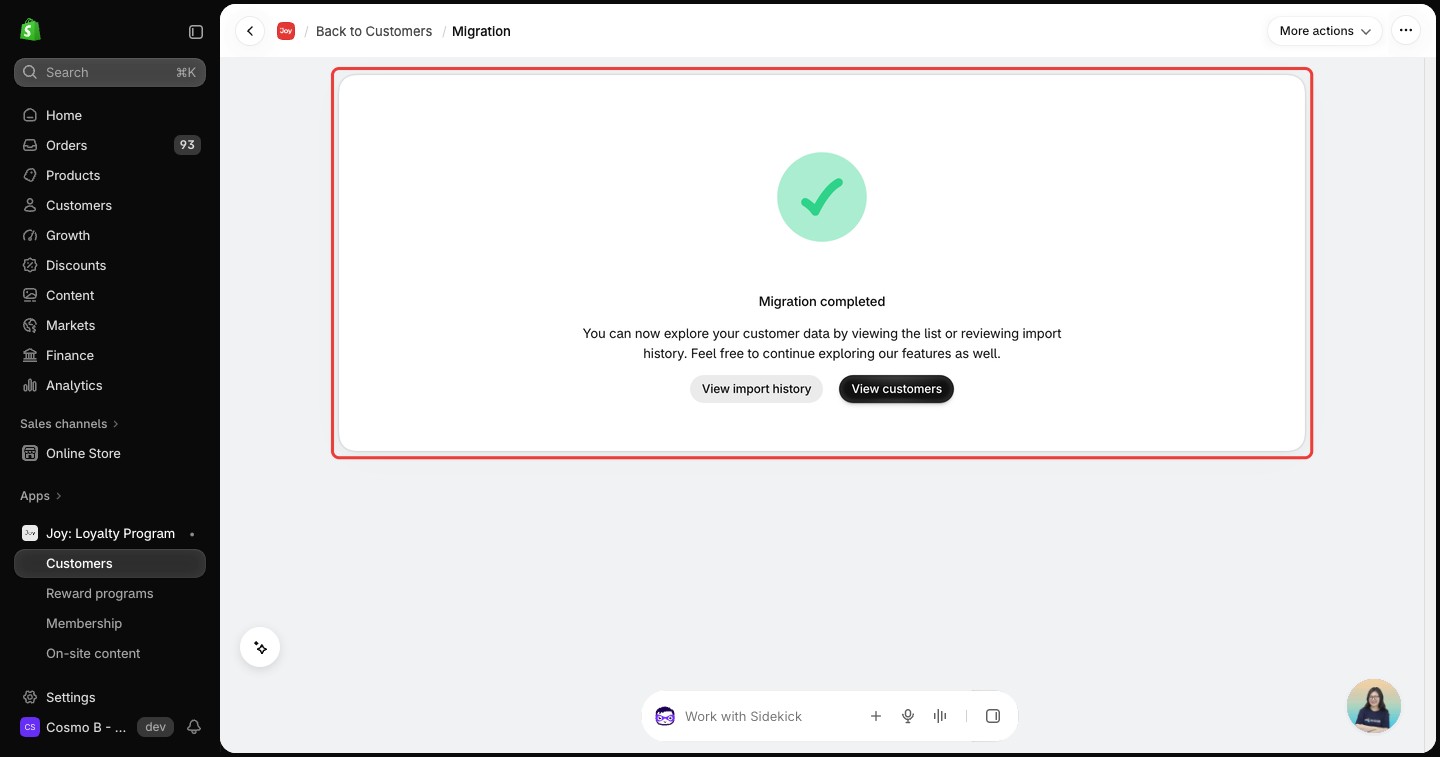
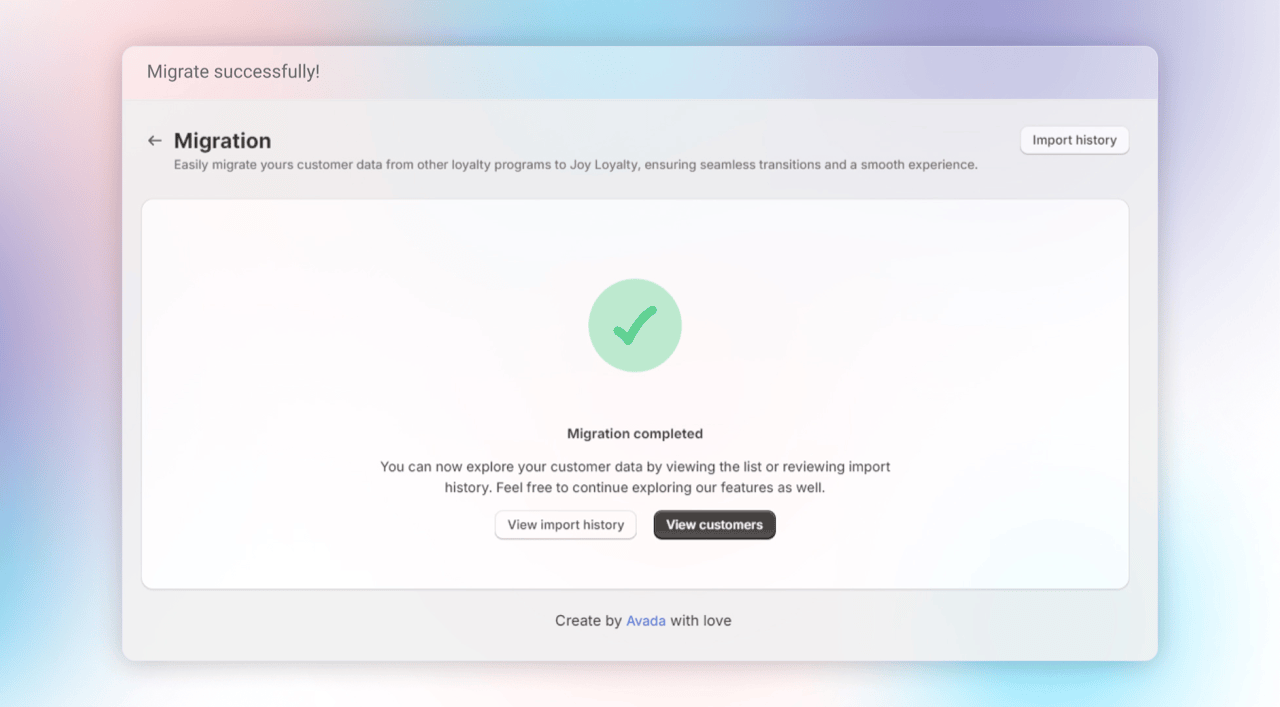
Step 9: Review your migrated customer loyalty data in the Customer section to ensure everything has transferred correctly.
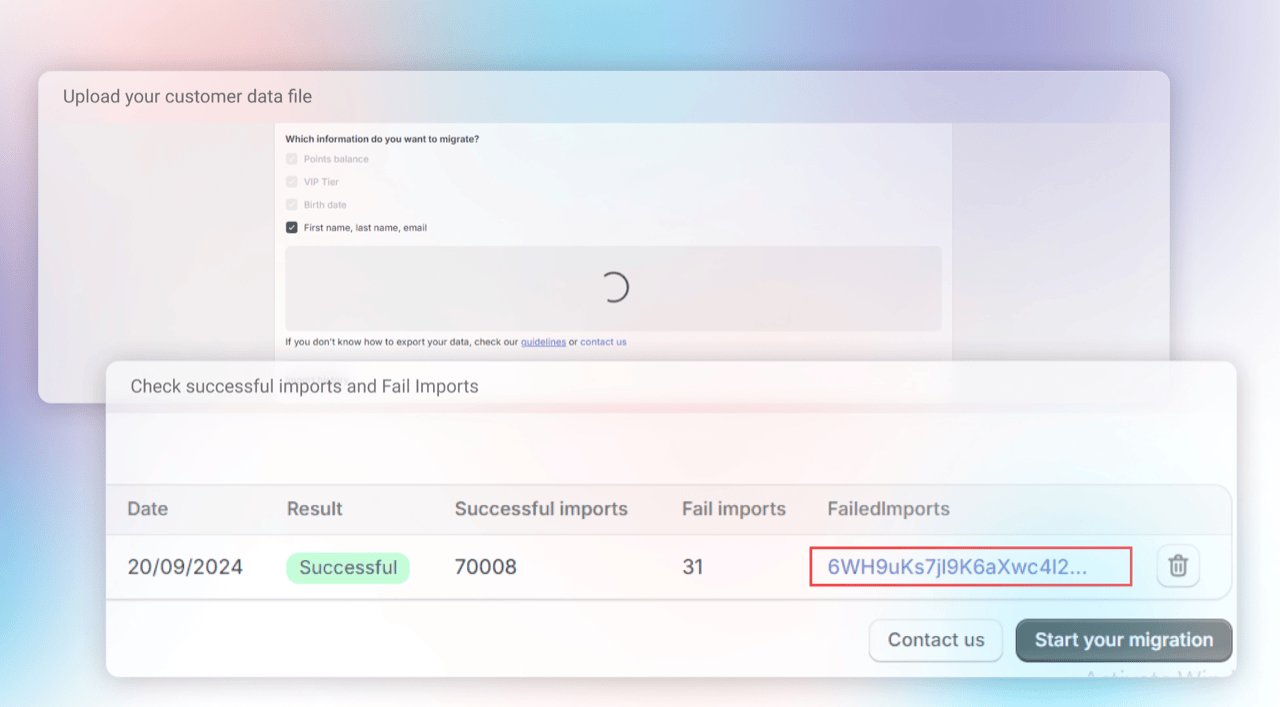
Step 10: Recheck your migration progress and fix Failed Import customers:
- Successful Imports: Number of customers successfully migrated.
- Failed Imports: Number of customers not migrated due to errors.
To resolve failed imports, download the failed_import file, make corrections, and upload the file again for review.
How to handle file errors and fix values for re-uploading
After Joy Loyalty reads your file and reports the number of successful and failed customer imports, follow these steps to ensure no customers are missed:
- Download the processed file from the FailedImports section.
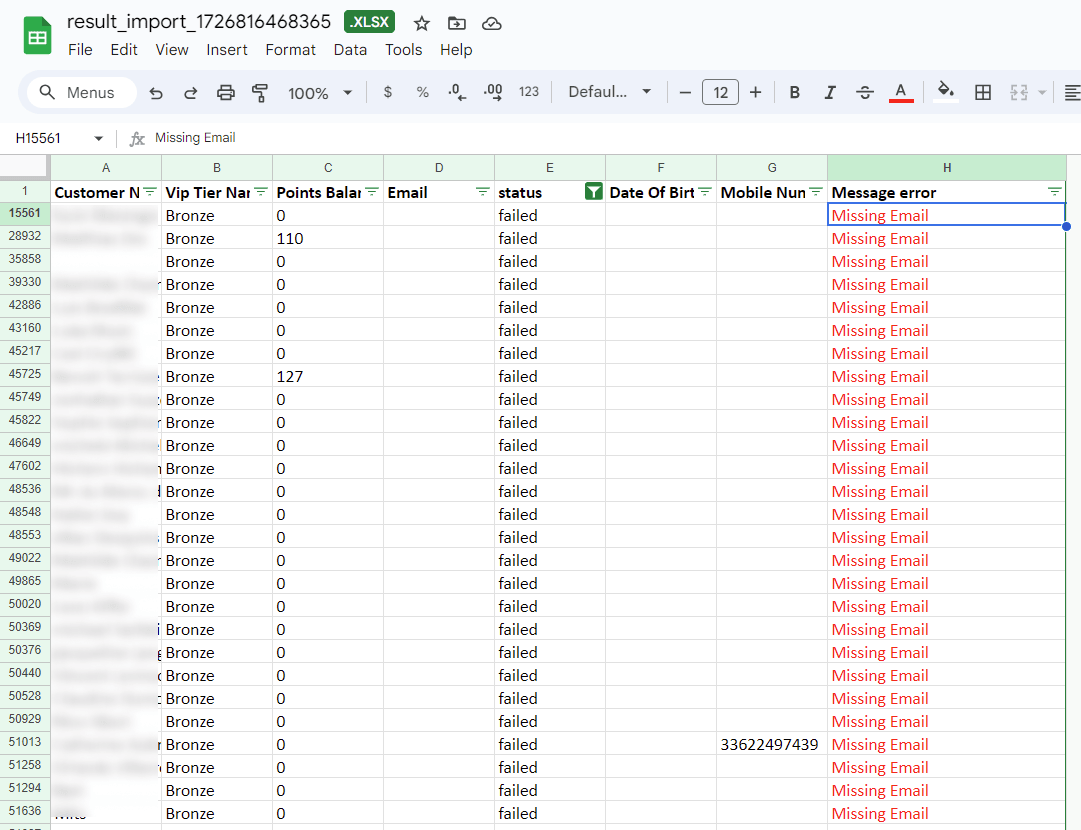
- Open the file (a spreadsheet) and apply a filter on the Status column to display only the failed customers.
- Review the error messages and correct the failed values.
- Re-upload the corrected file and review the data again to ensure all customers are successfully imported.
Overall
Migrating from Stamped to Joy Loyalty is a simple process that retains essential data. Following these steps will help you complete the migration without disruption to your loyalty program.
If you encounter any issues during the migration process, don't hesitate to contact our support team.
Frequently asked questions
Why don't I see Migration under More actions?
Joy shows Migration only after our support team turns it on for your store. It is available on the Essential, Advanced and Ultimate plans. On other plans, selecting Migration opens the upgrade dialog. Contact us via live chat and we will turn it on.
Which file can I upload?
Joy accepts a .csv or .xlsx file up to 25 MB, and the file must contain an email column or a phone column. For a Stamped Loyalty file, Joy matches these columns automatically: first_name, last_name, email, points, vip_tier, birthday and phone. Check them in the Match your data columns to Joy attributes step and change any column that did not match.
Why did some customers fail to import?
Joy could not match the row to a customer, or the row had no email and no phone. Joy matches each row by email or phone to a customer already in your Joy Customers list. In the Message error column of the result file, a row with no match shows Customer does not exist and a row with neither email nor phone shows a Missing message. Correct those rows and upload the file again.
What happens to my VIP tiers when I migrate them?
When you include VIP tier, Joy creates a tier for each tier name in your file with the milestone you set, and turns the VIP tier program on. If your store already has a tier with the same name or milestone, Joy updates it instead of adding a duplicate. Only one tier can have a milestone of 0, which is the base tier, and no two tiers can share the same milestone.
What happens if I migrate more than once?
After your first migration, the Ready step asks what to do with existing customers: Overwritten or Skipped. Overwritten replaces the loyalty values of matched customers with the values in the new file. Skipped leaves customers who were already migrated unchanged. Joy uses Overwritten unless you change it.
What happens after I start the migration?
Joy migrates in the background, so you can explore other features while it runs. Larger customer lists take longer, and the Migration page shows We are currently migrating... until it finishes. When it finishes, Joy syncs the loyalty data to your Shopify customer metafields. If points or tiers on Shopify customers still do not match Joy, select Sync metafield under More actions on the Migration page.
Need help?
Contact us via the live chat widget in your Joy admin, or email us at [email protected].