Joy and Fera Reviews
Learn how to integrate Fera Product Reviews with Joy Loyalty Program to reward customers for reviews, enhance trust, and drive conversions to your Shopify store.
Who can connect Joy with Fera Product Reviews?
You can connect Fera on all plans. The Write review program that rewards the reviews is available for the Essential plan and above.
How to integrate with Fera?
The integration with Fera allows Joy's users to reward customers when they write a review for your store.
In this article, we will guide you on how to connect Joy with Fera Product Reviews app (opens in a new tab)
Access Integration page
Click Integrations in the Joy sidebar, pick Product reviews in the category list on the left, and open the Fera Product Reviews card
Get Fera's secret key
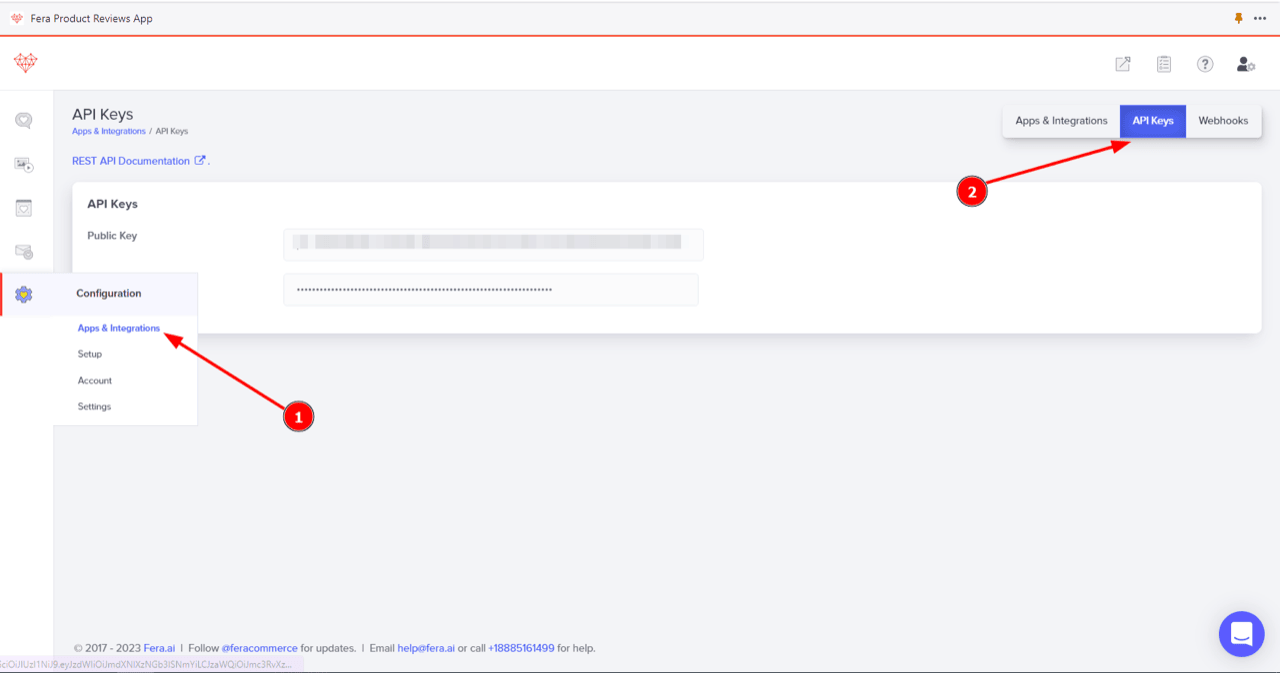
- Access Fera app > go to Settings page > App & Integrations > select API Keys
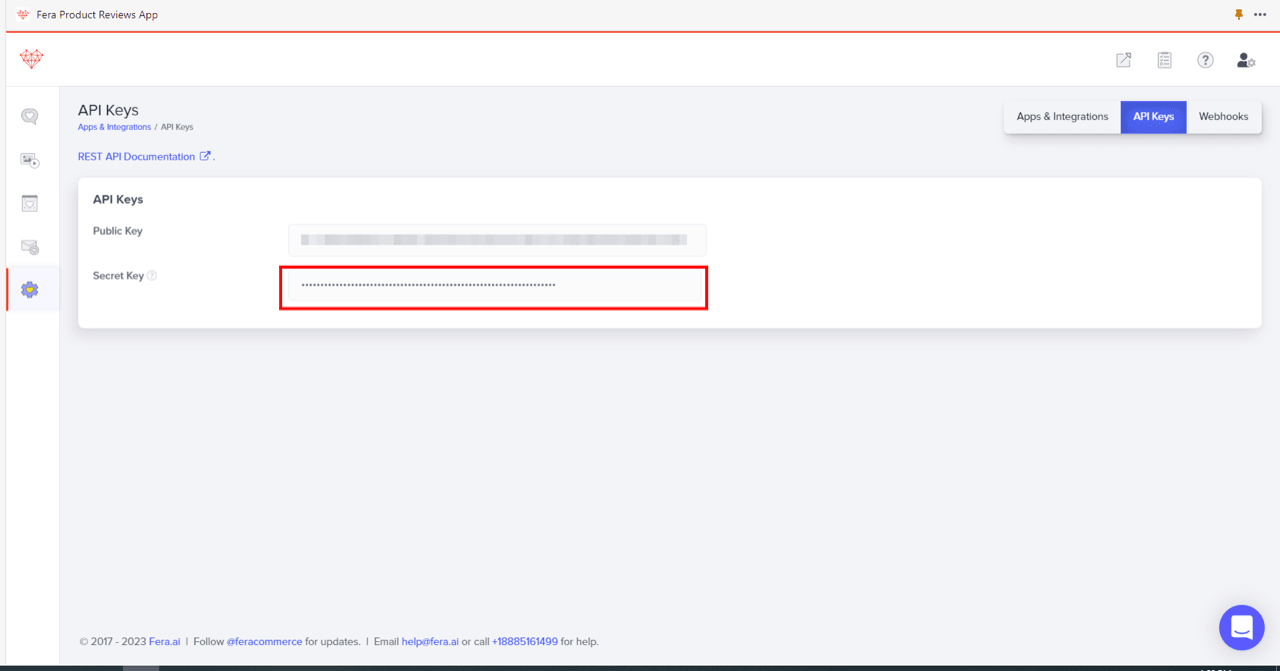
- At API Keys, copy Secret Key
Enter Fera's Secret Key
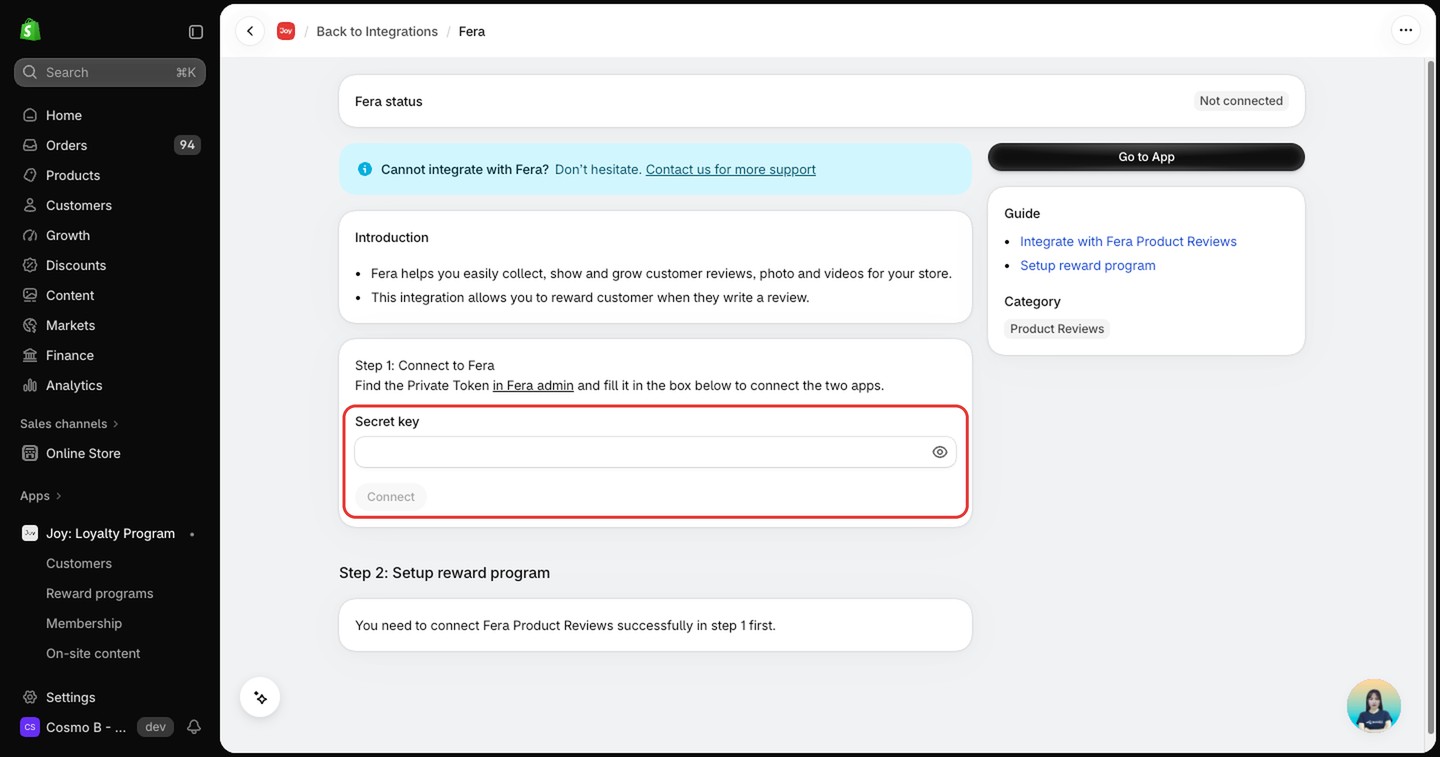
In Step 1: Connect to Fera, paste the key into Secret key
Connect the two apps
Click Connect. The button stays grey until you enter a key. When the connection works, Connected shows next to Step 1: Connect to Fera and Connect changes to Disconnect
If you want to disconnect the 2 apps, please click on Disconnect button
Wrap up
I hope that this guide will help you set up and test end-to-end your reviewing program. Should you need any help, feel free to reach out to our support team on live chat. We are happy to help you 24/7.
FAQs
Why is the Connect button grey?
Connect stays grey until you type a key in Secret key. Paste the key from Fera into the field, then click Connect.
Where do I find the key?
In Fera. The text in Step 1: Connect to Fera links to Fera's API keys screen through in Fera admin. Joy's text calls the key the Private Token, and the field you paste it into is labelled Secret key.
How do I reward customers after connecting?
Use Step 2: Setup reward program on the same page. Once Fera is connected, it shows a here link that opens the Write review program, or a new one if you do not have it yet. You can also go to Reward programs > Earning programs, click Add program, choose Write review and select Fera Product Reviews in Choose a review app. See Write review for every setting.
Why does the Write review form show "Fera Product Reviews (Not setup)"?
Joy has no active connection to Fera yet. Open the Fera Product Reviews card in Integrations, paste the key and click Connect. After the connection works, the form shows (Connected) next to Fera Product Reviews.
Why don't customers get points as soon as they submit a review?
New reviews wait for your approval by default. Go to Customers, click Activities, open the Review Activities tab, click the Status button of a review and choose Approved. To give points right away instead, set Default status for Product reviews to Approved in Settings > General.
Need help?
Contact us via the live chat widget in your Joy admin, or email us at [email protected].
Last updated on