Lists
Signed-in shoppers sort what they save into lists they name, like "Ski trip" or "Mom's birthday".
Available for stores that installed Joy Wishlist on or after November 12, 2026, on all plans. Installed earlier? Contact us and we'll turn it on.
Overview
Shoppers know exactly why they save an item at the moment they save it: a trip, a gift, next season. When every save lands in one long list, that reason is lost, and the wishlist turns into a grid that's hard to come back to.
Lists are part of every wishlist on your store. All saved items always holds everything a shopper saved, and their own lists sit on top of it. A list is a label, so one item can be in several lists. There's nothing to turn on or off.
- Add to a List after each save: the save message offers Add to a List. Shoppers tick one or more lists, or create a new one on the spot.
- My lists on the wishlist page: shoppers open a list to see only its items, and sort items into lists.
- Suggested lists (optional, off by default): Joy Wishlist offers a ready-made list from saved items that share a product type, collection or tag. See Suggested lists.
Before you start
- Make sure the Joy Wishlist app embed is on. On the Joy Wishlist home page, App embed should show Active.
- Turn on customer accounts in Shopify (Settings > Customer accounts). Lists belong to a shopper's account, so with customer accounts off, shoppers don't see lists at all. See Shopify customer accounts (opens in a new tab).
- Use the full wishlist page. In Wishlist setup > Wishlist page > How it opens, Page type should be Full page (the default for new installs). Lists show only on the full wishlist page, not in the drawer, the pop-up or the Joy Loyalty widget.
What shoppers see
After saving an item
- The save message shows the item, Saved and an Add to a List button for 6 seconds. It stays while the shopper hovers over it.
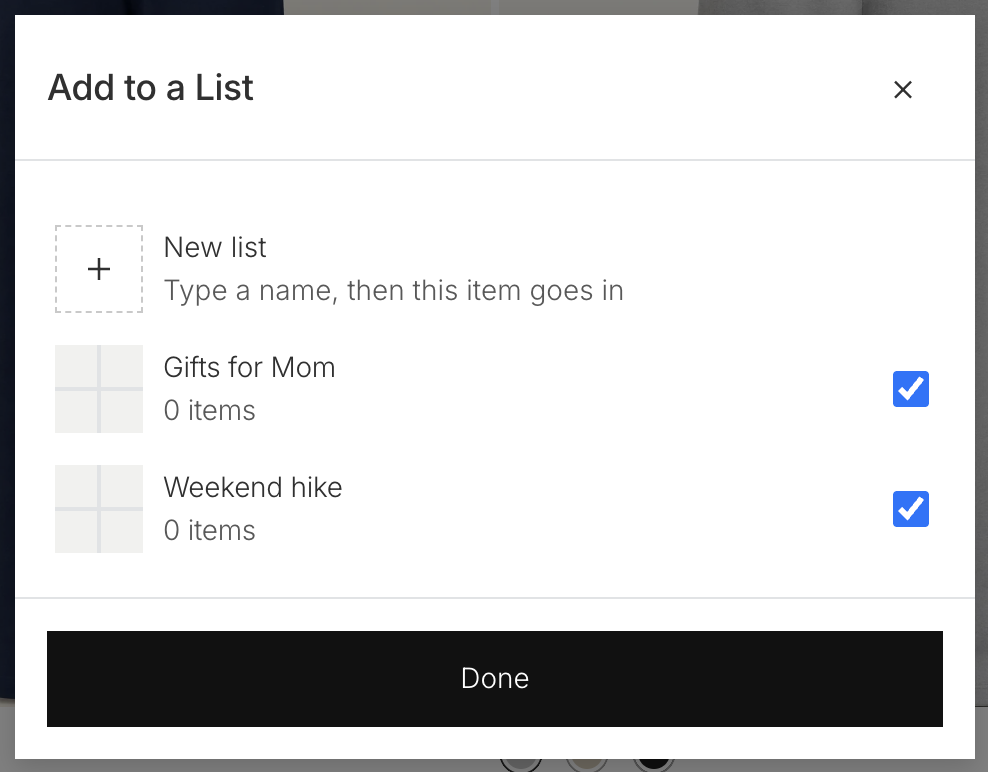
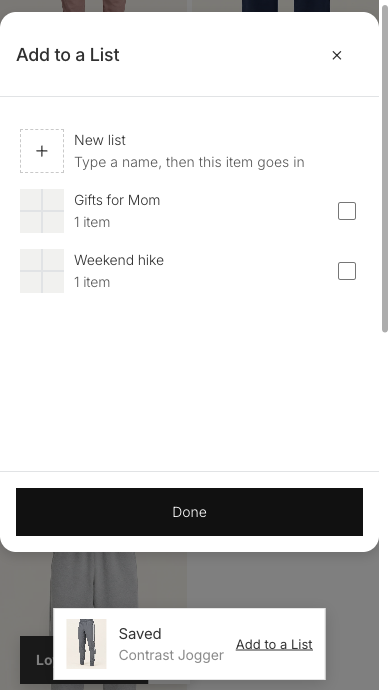
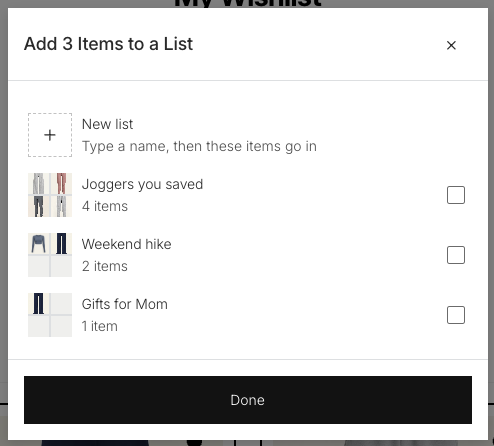
- Add to a List opens a window with New list on top, then the shopper's lists, most recently used first, each with photos and an item count.
- The shopper ticks one or more lists and clicks Done. The message changes to "Added to Ski trip, Gifts". With 3 lists or more it reads "Added to Ski trip, Gifts +1". Change opens the window again.
- To create a list here, they click New list, type a name and click Create. The new list is ticked for this item.
Closing the window keeps what they ticked. Unticking every list leaves the item in All saved items only ("Kept in All only"). From 7 lists, the window adds a Search lists box. On phones, the window slides up from the bottom.
On the wishlist page
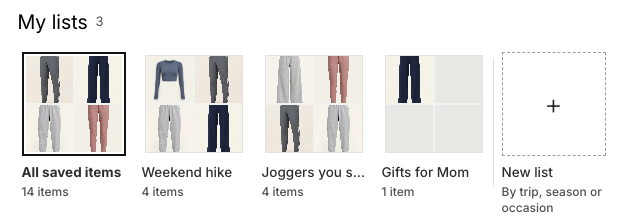
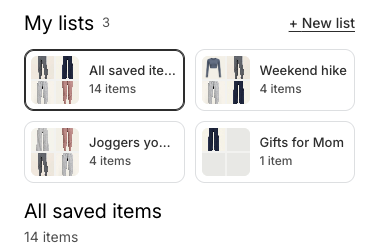
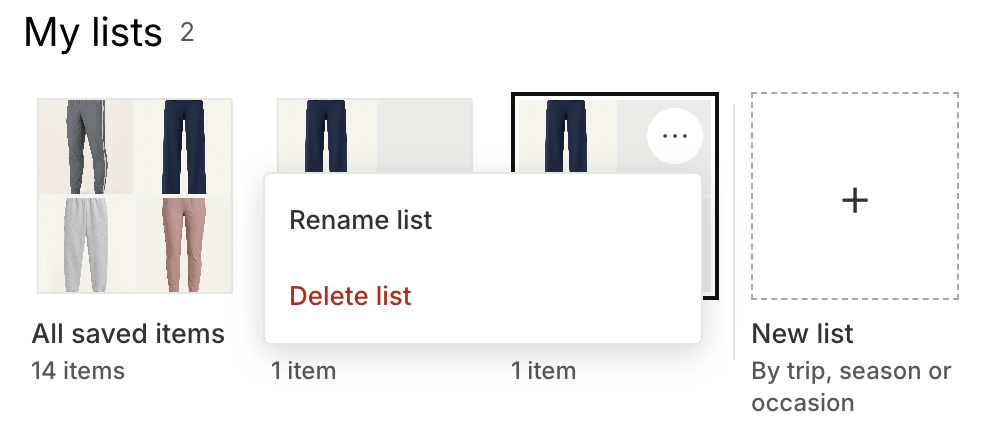
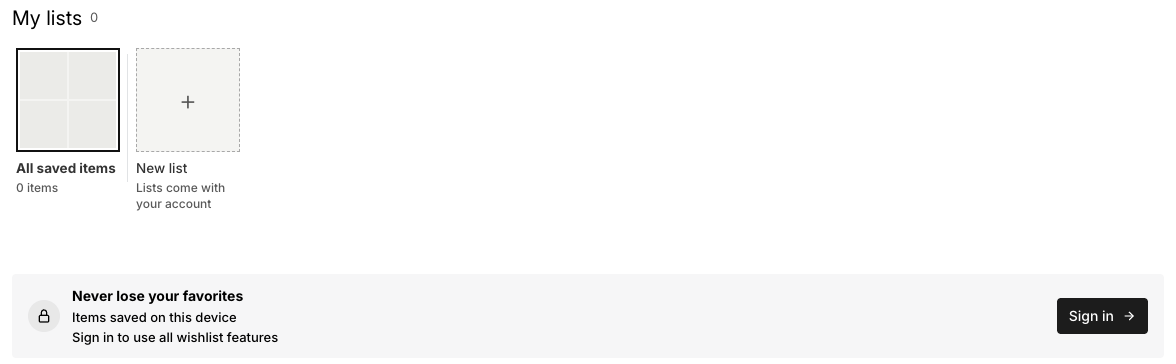
- My lists: All saved items comes first and always holds every saved item. The shopper's lists follow, then New list. On phones, the first 4 show, then Show all, and New list sits next to the My lists heading.
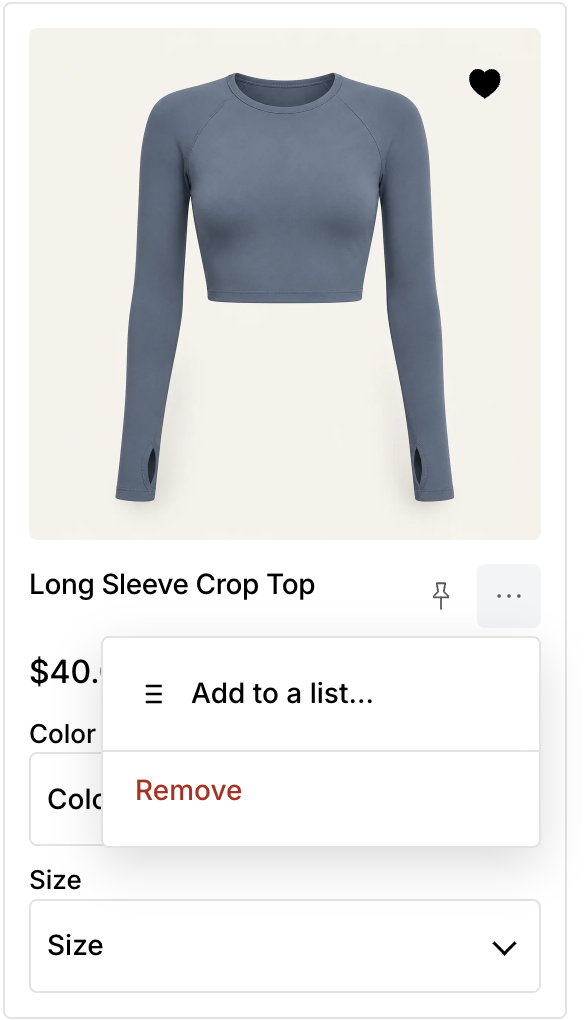
- Item menu: the ⋯ on a saved item has Add to a list… (the same window as above) and Remove. Unticking a list there takes the item out of that list only. Remove takes the item out of the wishlist and every list.
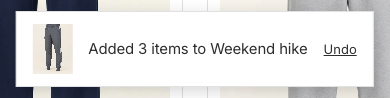
- Select: the shopper ticks several items, then clicks Add to a List at the bottom. This adds them to the chosen lists in one go, with Undo. It never takes items out of a list.
- New list: a window with Name and Add saved items now (optional). The shopper can pick saved items to put in, then clicks Create List (or Create List with 3 Items). The new list opens on the page.
- List menu: the ⋯ on a list card (on phones, next to the open list's name) has Rename list and Delete list.
Guests
Guests save items as usual and see All saved items. New list shows "Lists come with your account", and Add to a List asks them to sign in. When they sign in, the items they saved as a guest join All saved items, and the lists on their account stay as they are.
Check your setup
Lists need no setup. Check these two things once:
Open the Wishlist page tab
From your Shopify admin, go to Apps > Joy Wishlist > Wishlist setup, then open the Wishlist page tab.
Check your wishlist page
Under How it opens, Page type should be Full page, and the Wishlist page status badge should show Created. If it shows Not created, click Create wishlist page, enter a Page URL and click Create page.
Change the words shoppers see
Edit the words in Apps > Joy Wishlist > Wishlist setup > Wishlist page, then click Save in the save bar.
- My lists row: under Page content, click the edit icon on My lists. Edit Row title, All saved items, New list, Line under New list and Locked, for guests.
- Other languages: go to Settings > Translations, choose the language, open Wishlist page and look under My lists.
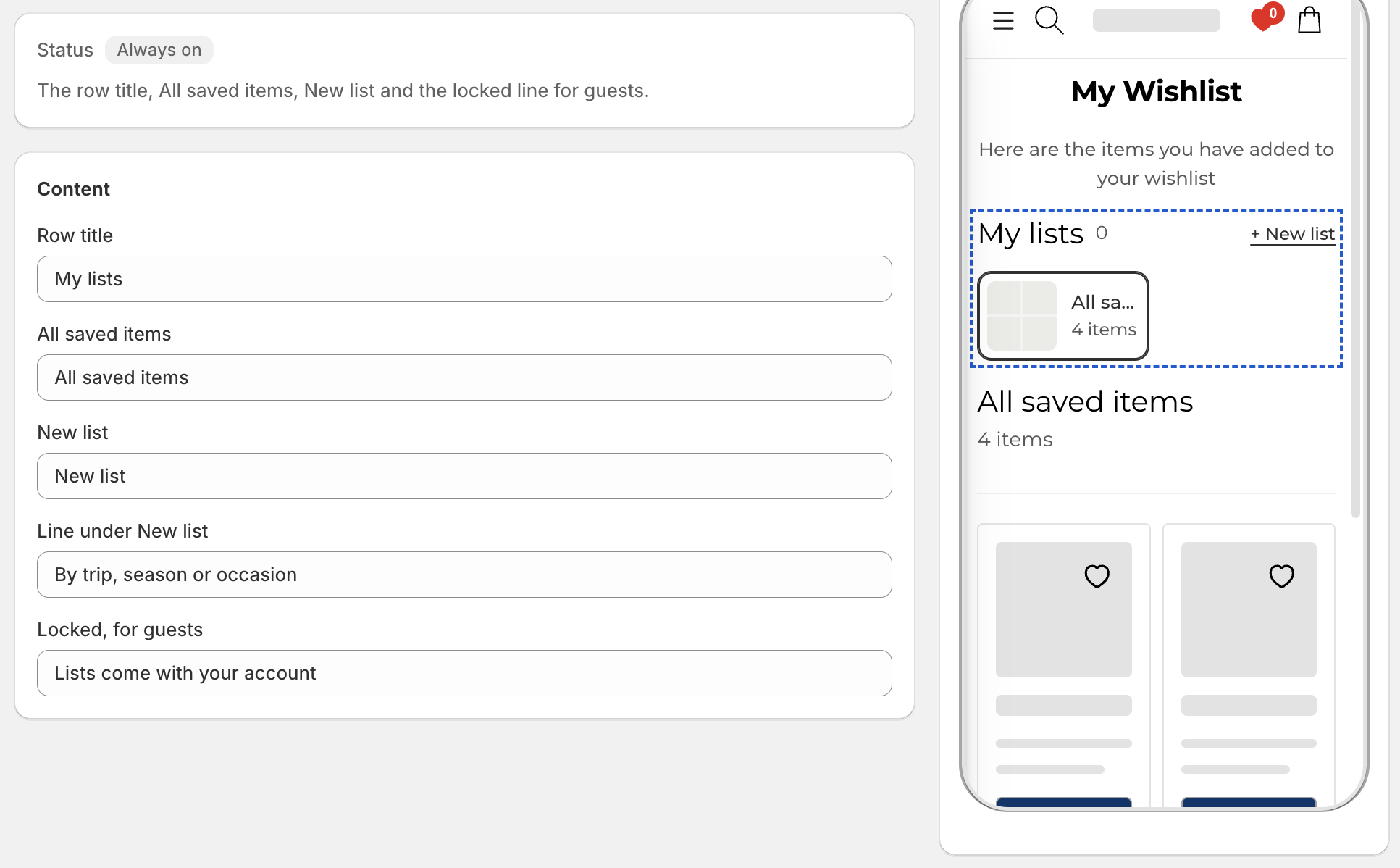
The words in the save message, the Add to a List window and the item and list menus can't be edited. They come translated in the storefront languages Joy Wishlist supports.
Test it yourself
Run one full test as a shopper before you rely on it. It takes about 10 minutes.
Sign in as a shopper
On your store, sign in with a customer account you can use for testing.
Save an item to a new list
Save any product. In the save message, click Add to a List, then New list. Type "Test", click Create, then Done. The message reads "Added to Test".
Check the wishlist page
Open your wishlist page. My lists shows Test with 1 item. Click it to see the item, then click All saved items: the item is there too.
Take the item out of the list
On the item, click ⋯ > Add to a list…, untick Test and click Done. The message reads "Kept in All only". The item stays in All saved items.
Check the guest view
Sign out and open the wishlist page. New list shows "Lists come with your account".
Clean up
Sign in again. Open the ⋯ on Test, click Delete list, and confirm with Delete list. The items stay in All saved items.
Repeat steps 2 to 4 on a phone too.
FAQ
Q: What happens to the items when a shopper deletes a list?
A: They stay in All saved items and in any other list they belong to. Only the list goes away. Deleting a list can't be undone.
Q: How do shoppers take an item out of one list only?
A: On the wishlist page, they click ⋯ > Add to a list… on the item, untick that list and click Done. Remove takes the item out of the whole wishlist, including every list.
Q: How long can a list name be?
A: 1 to 40 characters. Two lists can have the same name.
Q: A shopper has a lot of lists. How do they find one?
A: From 7 lists, the Add to a List window shows a Search lists box.
Q: Can guests use lists?
A: No. Guests see All saved items only, and Add to a List asks them to sign in. After they sign in, their guest items join All saved items on their account.
Q: My wishlist opens in a drawer or a pop-up. Can shoppers use lists?
A: Shoppers can still add items to lists from the save message, but the drawer, the pop-up and the Joy Loyalty widget don't show My lists. To let shoppers open their lists, set Page type to Full page in Wishlist setup > Wishlist page > How it opens.
Q: Can I change the words in the Add to a List window?
A: No. The save message, the Add to a List window and the item and list menus use fixed words, translated into the storefront languages Joy Wishlist supports. You can change the My lists row, and the Suggested lists words (see Change the words shoppers see).
Q: Can items saved without a size go in a list?
A: Yes. They go into lists like any other saved item.
Q: Can I turn lists off?
A: No. Lists are part of how the wishlist works on your store, so there's no switch. Shoppers who don't make a list simply keep everything in All saved items.
Need help?
Contact us via the live chat widget in your Joy admin, or email us at [email protected].