Suggested lists
Offer shoppers a ready-made list from saved items that belong together.
Available for stores that installed Joy Wishlist on or after November 12, 2026, on all plans. Installed earlier? Contact us and we'll turn it on.
Overview
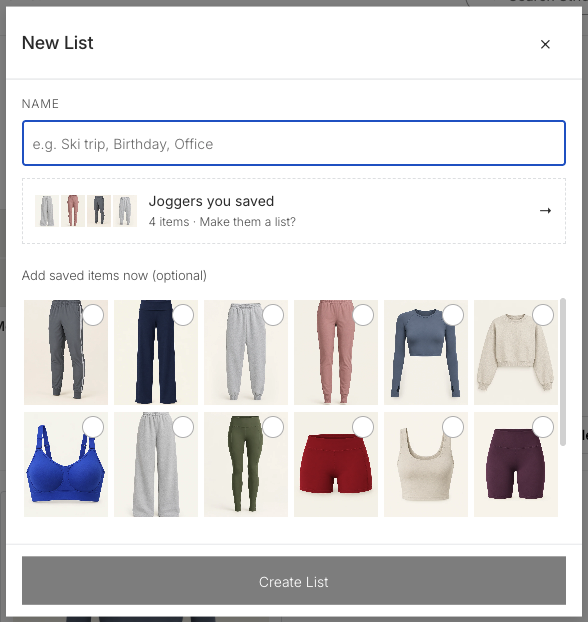
When a shopper opens New list on the wishlist page, Joy Wishlist can suggest a list made from their saved items that share a product type, a collection or a product tag, like "Joggers you saved". One tap creates it. The suggestion uses how you already organise your catalog, so shoppers don't have to sort everything by hand.
Suggested lists is off by default, because it only makes sense when your product types, collections or tags are set up. It works on top of Lists.
How to set up
Open the Wishlist page tab
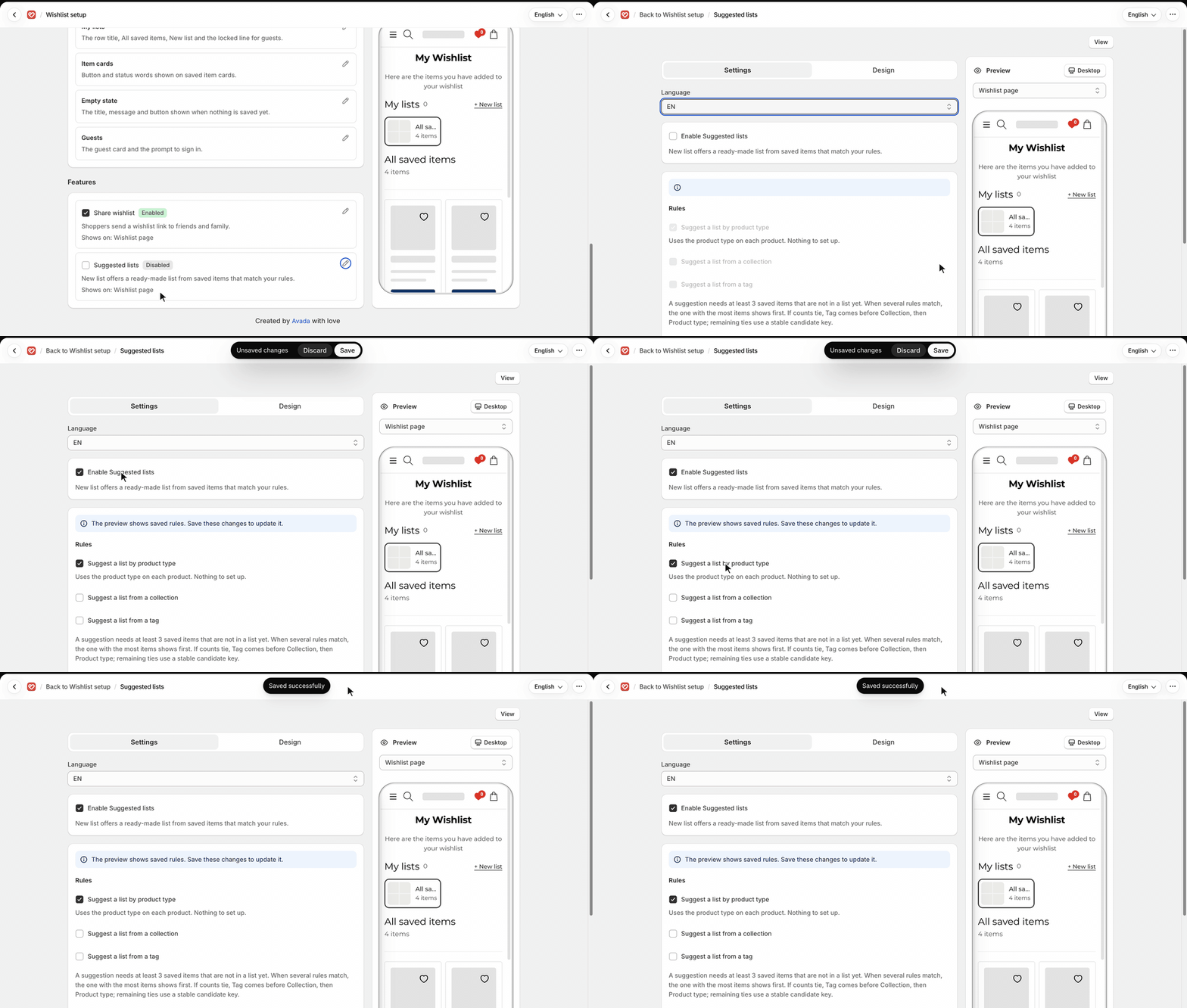
From your Shopify admin, go to Apps > Joy Wishlist > Wishlist setup, then open the Wishlist page tab.
Open Suggested lists
Scroll to Features and click the edit icon on Suggested lists.
If customer accounts are off in Shopify, the row is greyed out and a banner reads "Lists need customer accounts. Turn customer accounts on before enabling Suggested lists."
Turn on Suggested lists
Check Enable Suggested lists. The rules below become available.
Pick your rules
Choose how saved items are grouped. You can use more than one rule.
| Rule | Groups saved items by | List name shoppers see |
|---|---|---|
| Suggest a list by product type (on by default) | The product type on each product. Nothing to set up. | "Shoes you saved" |
| Suggest a list from a collection | Any collection, or Only these collections (click Choose collections). Your All and Frontpage collections never count. | "Saved from Summer Essentials" |
| Suggest a list from a tag | A product tag you enter in Product tag. It must match exactly; capital letters don't matter. Click Add tag rule for each tag. | The Suggested list name you enter |
Save
Click Save in the save bar. Shoppers see suggestions the next time they open New list.
How a suggestion is picked
- A suggestion needs at least 3 saved items that are not in a list yet.
- Shoppers see one suggestion at a time. The rule with the most matching items wins. If counts tie, Tag comes before Collection, then Product type.
- It shows only in New list on the wishlist page, for signed-in shoppers.
What shoppers see
- In New list, a strip under Name shows the suggested name and "4 items · Make them a list?".
- Tapping it opens Suggested list: the name is filled in, a note reads "Suggested from your saved items in Joggers", and the matching items are ticked. The shopper can rename it or untick items.
- Create List with 4 Items creates the list and opens it. A message reads "List created: Joggers you saved · 4 items".
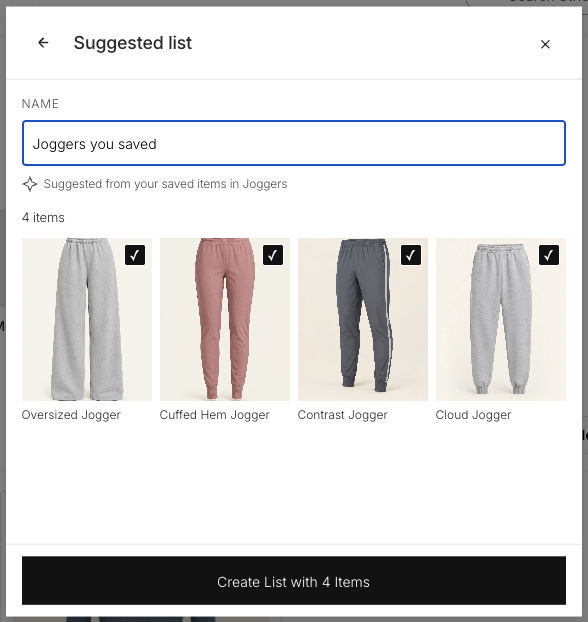
The result is an ordinary list. Items saved later don't change it.
Change the words shoppers see
On the Suggested lists screen, under Shopper content, edit Product type list name, Collection list name, Strip line and Screen title, then click Save in the save bar. Each tag rule uses its own Suggested list name. For other languages, go to Settings > Translations, choose the language, open Wishlist page and look under My lists.
Test it yourself
Sign in as a test shopper and save 3 products that have the same product type set, without adding them to a list. On the wishlist page, click New list. The suggestion appears under Name. Click it, then Create List with 3 Items.
FAQ
Q: I turned on Suggested lists. Why don't I see a suggestion?
A: Check that:
- You're signed in on your store, and you opened New list on the wishlist page. Suggestions don't show in the Add to a List window after a save.
- At least 3 of your saved items match one rule, and none of them is in a list yet.
- At least one rule is checked. With all rules off, the row on the Wishlist page tab shows Pick a rule.
- For a product type rule, the products have a product type set. For a collection rule, the items aren't only in your All or Frontpage collection.
Q: A shopper closed New list without creating the suggested list. Does the suggestion come back?
A: Yes. The same suggestion shows the next time they open New list, until those items are in a list.
Need help?
Contact us via the live chat widget in your Joy admin, or email us at [email protected].